

Who can view this report
Like Organizational Health, Onboarding is only available to people who can see Analytics for the entire organization: Workspace Admins and Data Analysts.HR Admins, managers, and other members don’t see the Onboarding report, even if they can open other Analytics reports.
Choosing who and what to measure
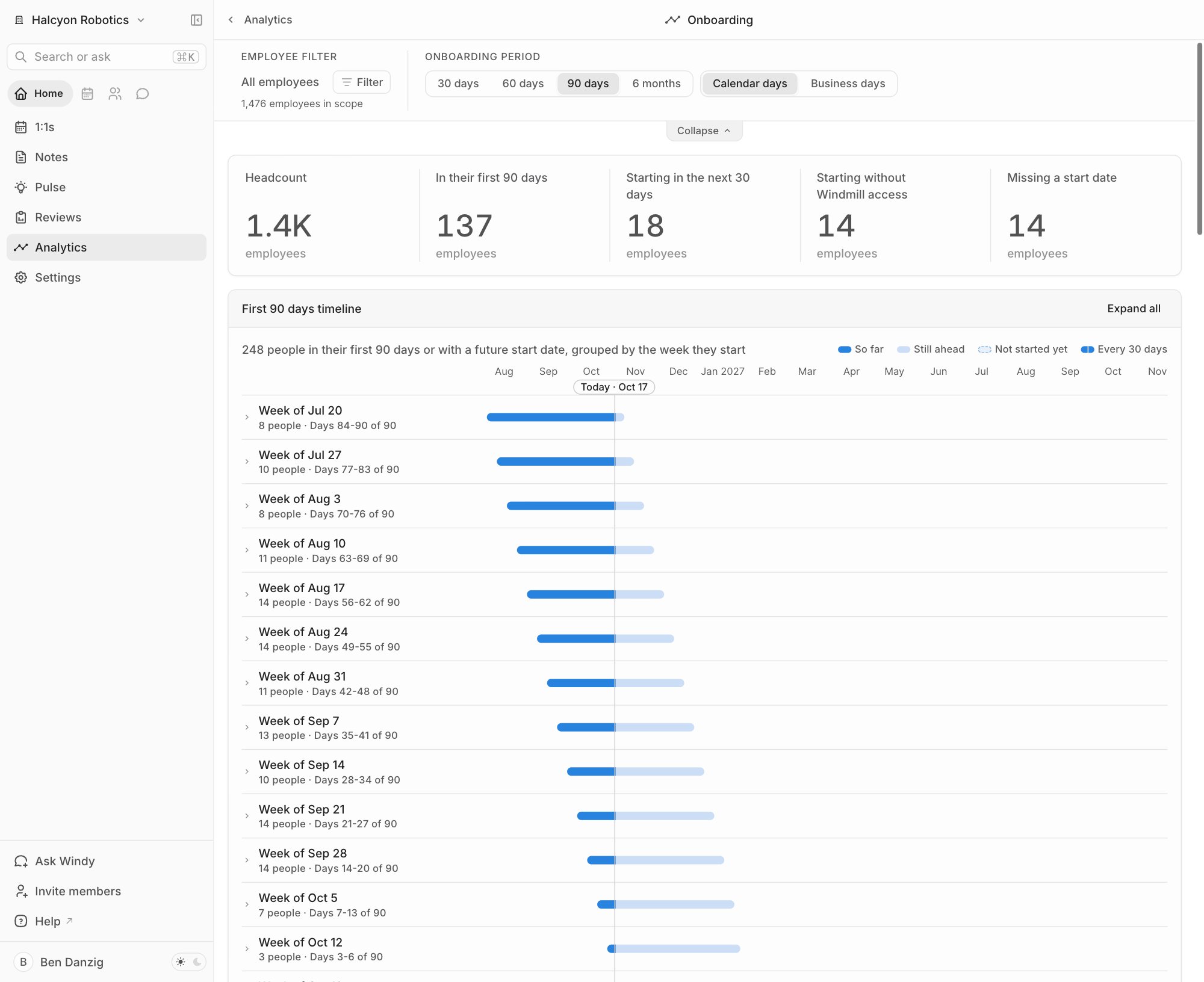
The control panel at the top of the report sets the scope for every section.Employee filter
Search by name or email, or filter by group, job title, manager, start date, or tenure. Leave the filter empty to include all employees. The line below the filter shows how many employees are in scope. The report counts every employee in your org chart, not only people who have a Windmill account.Onboarding period
The onboarding period sets how long someone counts as a new hire. It replaces the date range used in other Analytics reports.- Length — 30, 60, 90, or 180 days. The default is 90 days.
- Calendar days or Business days — Business days count Monday through Friday only. If someone starts on a weekend, their business days start the following Monday.
Headline numbers
Five numbers summarize hiring for the current filter. Hover over a number, then hover over the info icon next to its name to see how it’s counted.
Select a number to see the people behind it, with their job title and manager.
Onboarding timeline
The First [period] timeline lists everyone currently onboarding and everyone with a future start date, grouped by the week they start.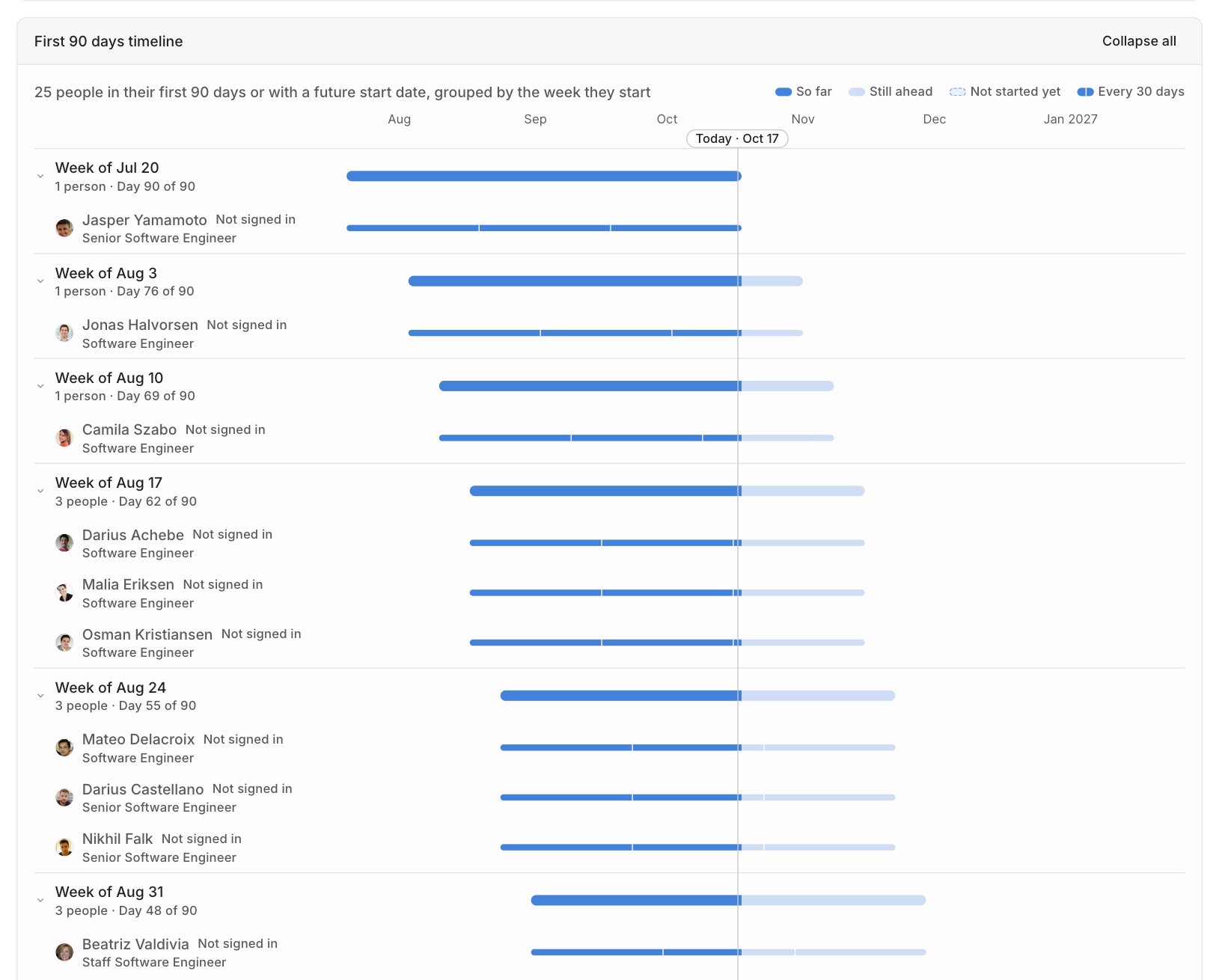
- So far — The part of the onboarding period that has passed.
- Still ahead — The part that hasn’t happened yet.
- Not started yet — A dashed bar for people with a future start date.
- Every 30 days — Tick marks at each 30-day milestone.
- Not signed in — They have a Windmill seat but haven’t signed in yet.
- No access — They don’t have an active Windmill seat.
New hires by week
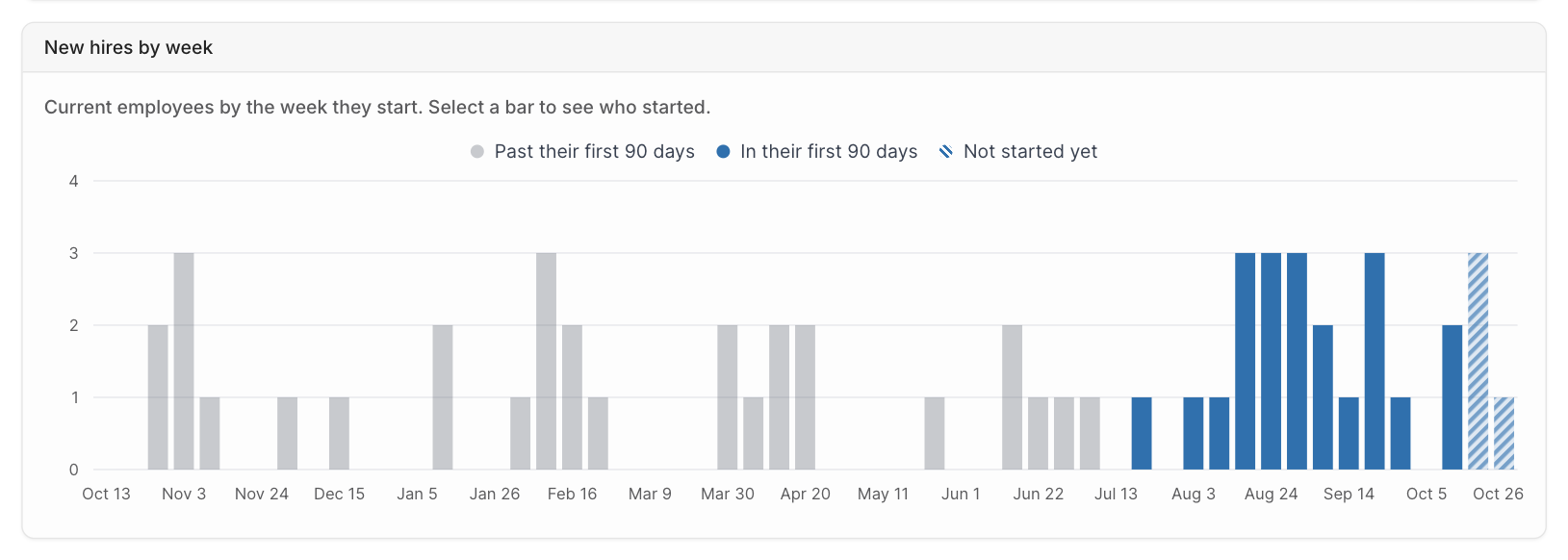
The New hires by week chart shows current employees by the week they start, from one year ago through the latest future start date. Each bar is split into:- Past their first [period]
- In their first [period]
- Not started yet
Ramp-up
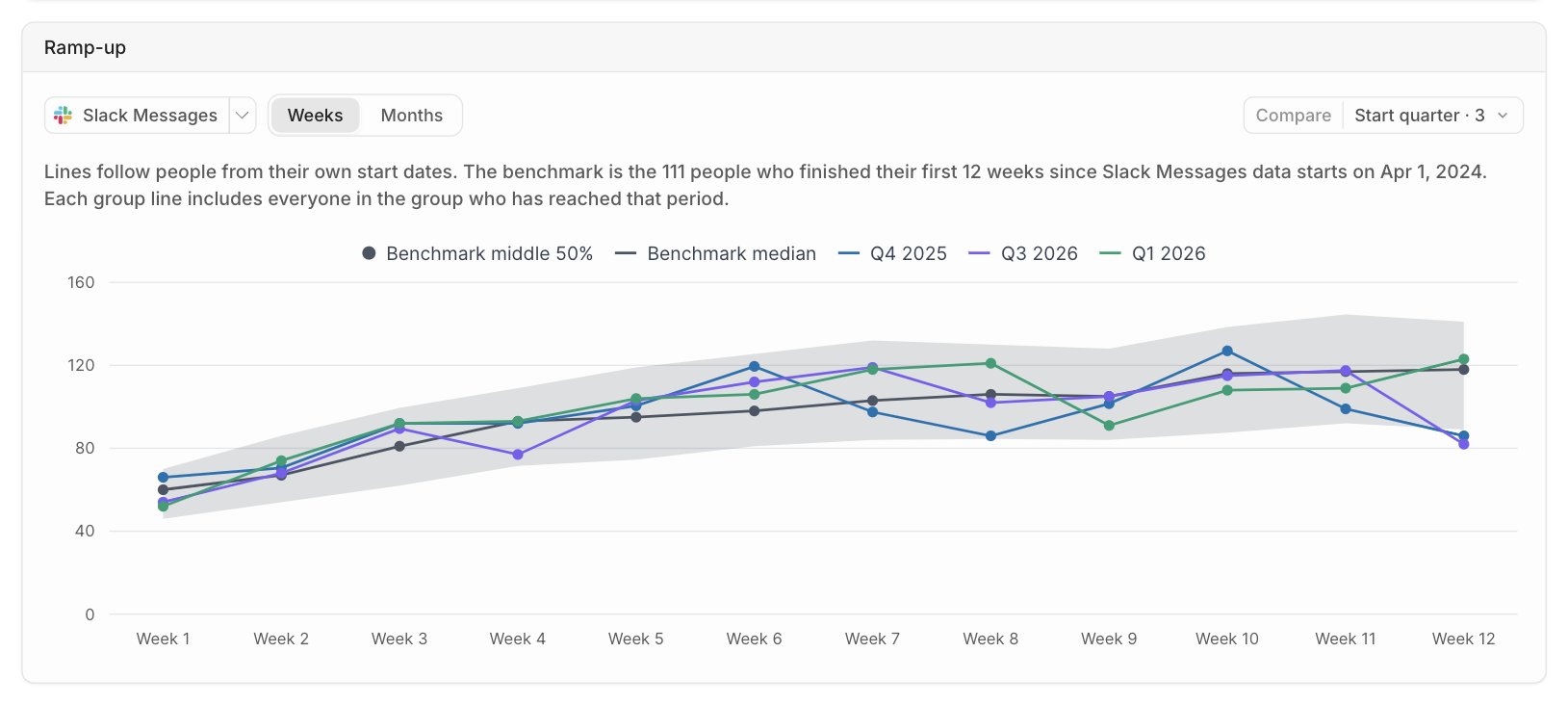
The Ramp-up chart compares how quickly new hires reach typical activity levels for a stat you choose, such as Slack messages sent. Use it to see whether new hires are ramping up on pace and which ones might need more support.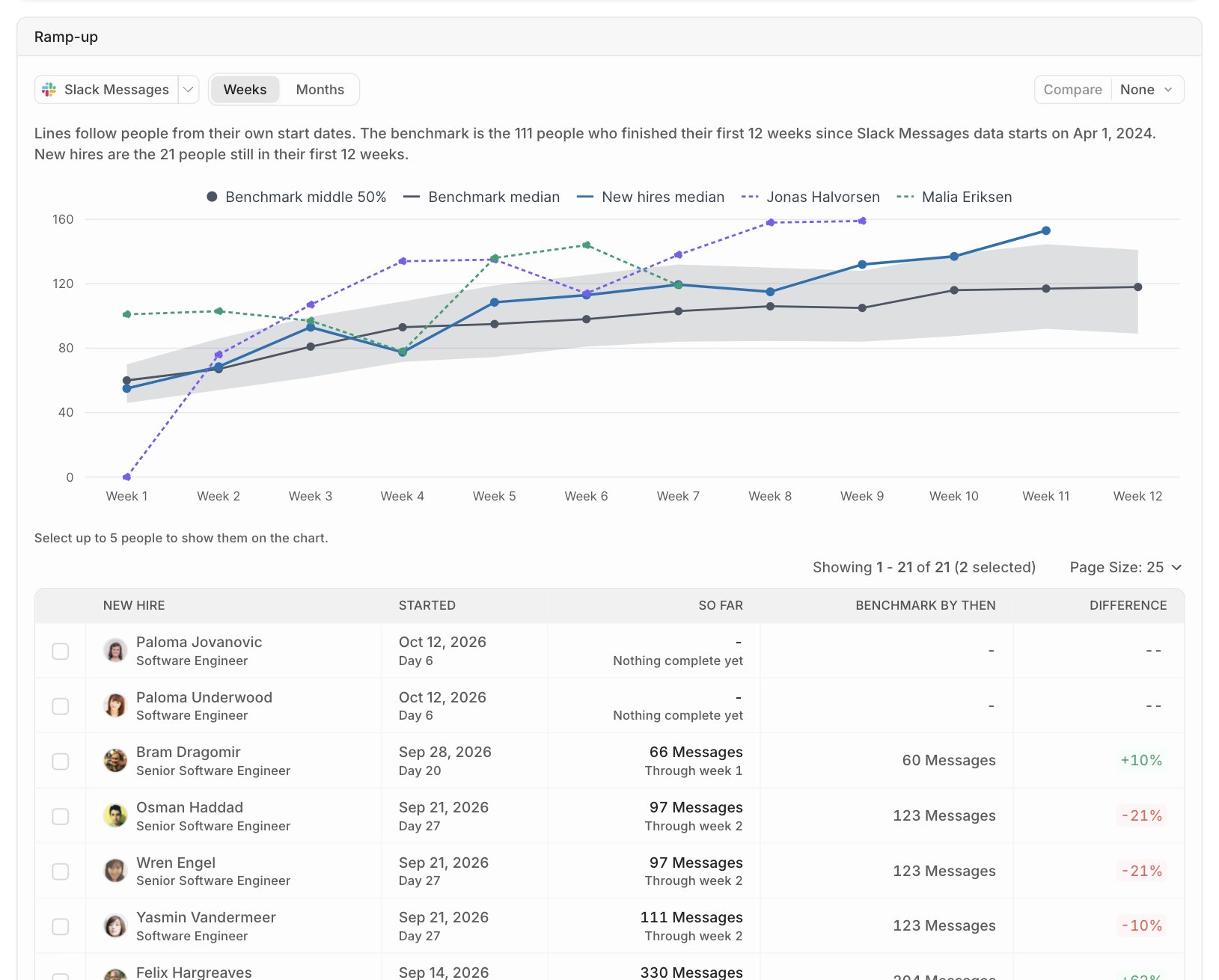
How ramp-up is measured
Everyone is measured from their own start date, so a person who started in March and a person who started in June are compared at the same point in their onboarding. The chart compares two groups of people in your filter:- Benchmark — People who started on or after the date Windmill began recording the stat, and who have finished their onboarding period. The chart shows the benchmark’s median as a gray line, and the range covered by the middle 50% of the benchmark as a gray band.
- New hires — People who have started but haven’t finished their onboarding period yet. The chart shows the new hires’ median as a blue line.
Choosing a stat and time scale
Select the stat button to choose a different stat. Stats are grouped by integration. Stats from integrations you haven’t connected aren’t available. The report starts with Slack Messages when it’s available. The chart is divided into periods:- Calendar days — Choose Weeks or Months. Months need an onboarding period of at least 60 days.
- Business days — The chart shows each business day for a 30-day period, and five-day blocks (Days 1-5, Days 6-10, and so on) for longer periods. Activity on a weekend counts toward the next business day.
Comparing individual new hires
The table below the chart lists everyone in their onboarding period, newest first.
Select up to five people to add them to the chart as dashed lines.
Comparing groups
Use Compare to split the ramp-up chart by:- Start quarter — For example, Q3 2026 hires compared with Q2 2026 hires.
- Job title
- Group — Any group in Windmill that you can see.
Messages you might see
- No benchmark yet — No one in your filter has started and finished their onboarding period since the stat’s data started. Try a shorter onboarding period or a stat with a longer history.
- Narrow the filter to compare similar roles — At least a quarter of the people in the benchmark had none of this stat during onboarding, which pulls the benchmark down. For example, Engineering activity stats don’t reflect how Sales hires ramp up. Filter by job title or group so you compare people whose work the stat measures.
- No data for some groups yet — Some of the groups you’re comparing don’t have data for this stat, so they aren’t on the chart.
- There are too many employees to compare at once — Narrow the employee filter and try again.
What the report needs
- Start dates — Every section uses each employee’s start date. Sync start dates from your HRIS (Human Resources Information System) or update them on employee profiles. Employees without a start date are counted under Missing a start date and left out of the rest of the report.
- Integrations — Ramp-up uses activity from the integrations you’ve connected. See the full stats reference for what each integration records.
FAQs
Why isn't a new hire showing up in the report?
Why isn't a new hire showing up in the report?
Check that they have a start date and match the employee filter. The timeline only includes people who are within their onboarding period or who start in the future, and the ramp-up table only includes people who have started and are still onboarding. The New hires by week chart covers start dates from one year ago through the latest future start date.
Why is the ramp-up benchmark so low?
Why is the ramp-up benchmark so low?
The benchmark includes everyone in your filter who finished onboarding. If many of them don’t use the tool that the stat measures, the median drops. Filter by job title or group so the benchmark only includes people in similar roles.
Why don't I see a benchmark at all?
Why don't I see a benchmark at all?
The benchmark only includes people who started on or after the date Windmill began recording the stat, and who have finished their onboarding period. If you connected the integration recently, no one may have finished onboarding since then. Try a shorter onboarding period.
Why are the most recent periods empty?
Why are the most recent periods empty?
A period only appears once it’s complete and the integration has synced data for it. See Data Sync and Freshness for sync schedules.
Do former employees count?
Do former employees count?
Former employees aren’t included in the headline numbers, timeline, or new hires by week. They can be part of the ramp-up benchmark and group comparisons, so the benchmark reflects everyone who onboarded during that time.
Can I export the Onboarding report?
Can I export the Onboarding report?
The Onboarding report doesn’t have an export. Use Explore to export stats for specific people and dates.