

Find feedback
Open Feedback and select a tab.Team feed
Team feed shows all feedback that you have permission to see. Use Search feedback to search the text. Filter by From, To, Submitted at, or Updated at.Your feedback
Your feedback shows feedback about you and feedback you gave. Use the Feedback filter to switch between Received and Given. The tab shows Received first. You only see feedback about you when its audience includes you. For example, Manager only feedback is usually hidden from the recipient. See Feedback audiences.Read feedback details
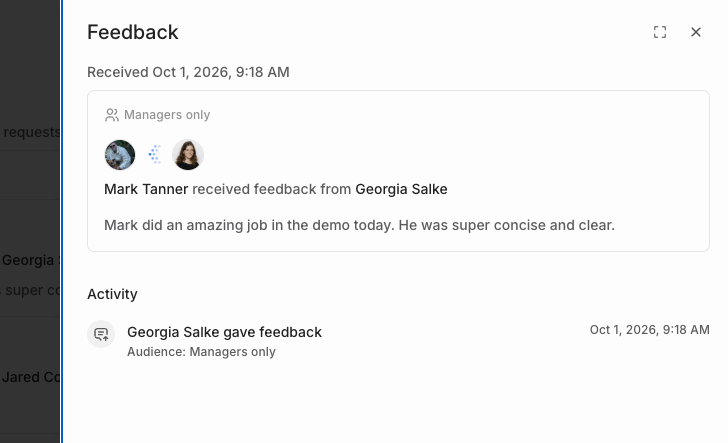
Select a feedback card to open its details. Select Open full page to open it on its own page. The details show:- The author and the person the feedback is about. The author shows as Anonymous when their identity is hidden.
- The audience. Move the pointer over the audience tag for a description.
- The full feedback text.
- Activity: the history of the feedback, such as edits, audience changes, and the request it answered.
Edit or delete feedback
You can edit or delete feedback that you gave, within your company’s edit window. Admins and HR Admins can also edit or delete feedback that colleagues gave, except feedback about themselves.1
Find the feedback
Find the feedback in Team feed or Your feedback.
2
Open Feedback options
Open the Feedback options menu on the card, then select Edit or Delete. If you’re the author, you can also use Edit and Delete in the feedback details.
3
Save or confirm
When you edit, change the text or select another allowed audience, then select Save. When you delete, select Delete feedback to confirm.
Limits
- Edit window: Admins and HR Admins set how long feedback stays editable after it’s submitted. Options are No editing, 1 hour, 24 hours, or 7 days. See Feedback settings.
- Shoutouts: Feedback that was delivered as a Shoutout can’t be edited or deleted.
Use Windy or MCP
You can also ask Windy to edit or delete feedback that you gave. Windy can change the text but not the audience. A connected MCP tool can change both. Both follow the same edit window and Shoutout limits.FAQs
Why can't I see feedback about myself?
Why can't I see feedback about myself?
Feedback only appears when its audience includes you. Manager only and Manager hierarchy feedback is hidden from the recipient, unless the recipient has no manager.
Why can't I edit my feedback?
Why can't I edit my feedback?
The edit window may have closed, or your company may have set it to No editing. Feedback delivered as a Shoutout can’t be changed.