

Set up SCIM with Okta
Set up SCIM with Microsoft Entra ID
SCIM attributes and field sources
Sync groups from your identity provider
Before you begin
You’ll need:- Admin, HR Admin, or Integration Manager access to your Windmill account
- Admin access to your identity provider (Okta, Microsoft Entra ID, etc.)
How SSO and SCIM work together
SSO controls how people sign in. SCIM controls who has access and what their profile contains.Set up SAML SSO
Go to Settings > Security and select Set up SSO to open the setup wizard. The wizard has three steps.Service provider
firstName → user.firstName, lastName → user.lastName) and the Name ID format (EmailAddress).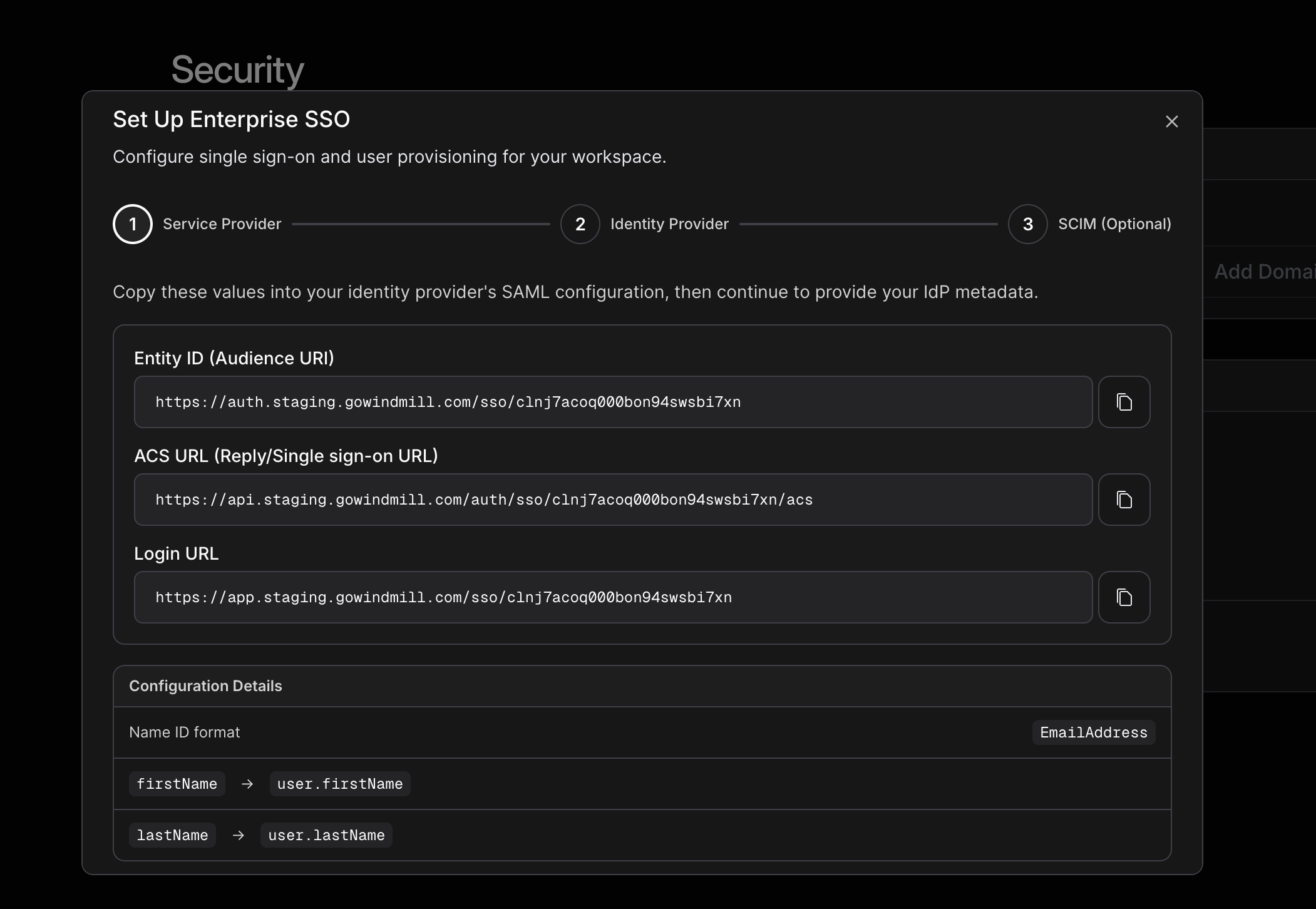
The Service provider step displays the values you need to configure your identity provider.
Identity provider
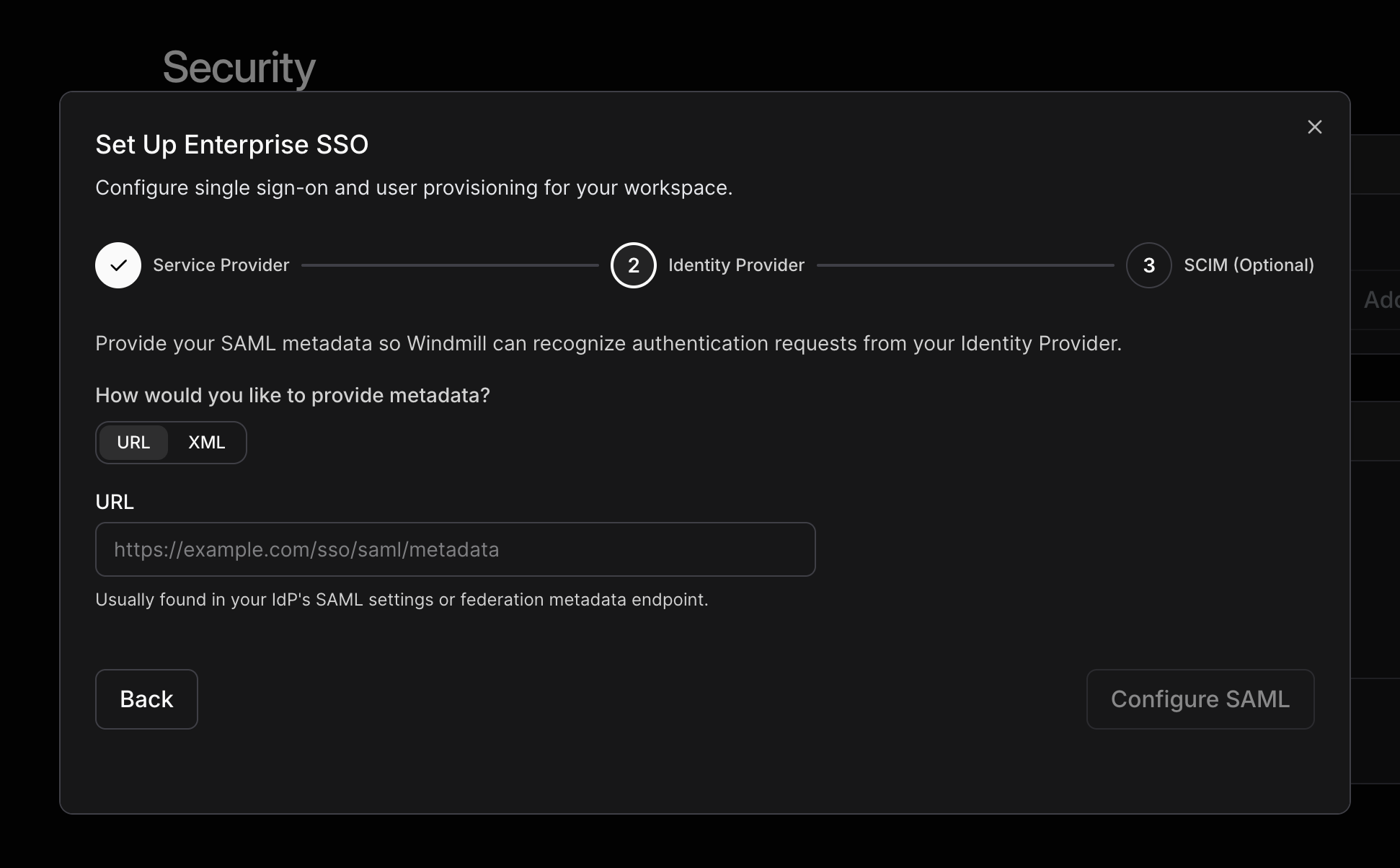
Provide your IdP metadata via URL or XML upload.
Test sign-in

After activation, your security settings display the SSO configuration and the SCIM setup card.
Set up SCIM provisioning
SCIM requires an active SSO connection. If SSO isn’t active yet, the SCIM card shows Test SSO sign-in first. Setup takes two steps in Windmill and one in your identity provider. You don’t need to come back to Windmill to turn provisioning on. Windmill turns it on automatically when your identity provider connects.Generate a SCIM token
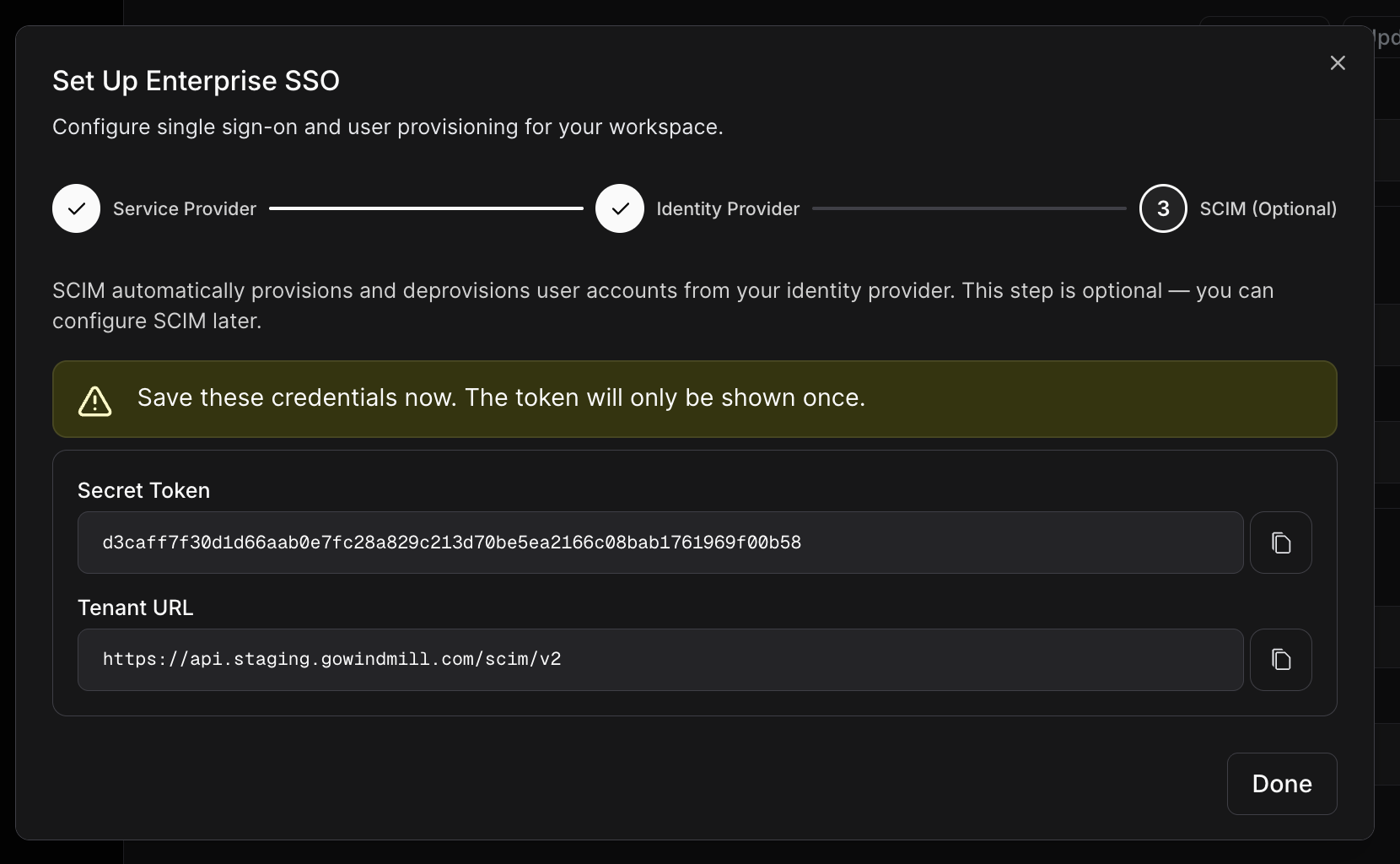
Copy the Secret token and Tenant URL before you close this dialog.
Paste the token and Tenant URL into your identity provider
Wait for your identity provider to connect
Provisioning status
The SCIM card on the Security page shows the current state, the time of the last sync, and a link to view members.Pausing, resuming, and removing SCIM
- Pause provisioning. Turn off the Provisioning is on toggle. Windmill rejects requests from your identity provider, but existing members keep their access. Your identity provider shows errors until you turn provisioning back on.
- Resume provisioning. Turn the toggle back on. Windmill applies the latest values it received from your identity provider to every provisioned member. See SCIM attributes and field sources.
- Regenerate the token. The old token stops working immediately. Paste the new token into your identity provider. Regenerating a token doesn’t turn a paused connection back on.
- Remove SCIM. Deletes the SCIM configuration and token. Members provisioned through SCIM keep their access, and manual invitations become available again.
What SCIM syncs
SCIM keeps four things in sync from your identity provider:- Members. Who has access to Windmill.
- Profile fields. Name, work email, job title, job level, start date, pronouns, gender, work phone, and profile picture. See SCIM attributes and field sources.
- Managers. The reporting line in your org chart.
- Groups. Identity provider groups become Windmill Groups. See Sync groups from your identity provider.
Member lifecycle
- New members are created with the Team Member role. Change roles in Settings > Members. See Permissions and Access.
- Existing members are linked, not duplicated. If a person with the same work email already has access to Windmill, SCIM links the identity provider record to that member.
- Archived members are reactivated when your identity provider provisions them again, for example when you re-assign the Windmill app to them.
- Deprovisioned members are archived when your identity provider deactivates or deletes them. Windmill signs them out, and their reviews, feedback, and notes are preserved. Access to any other Windmill account is unaffected.
Profile fields and field sources
Windmill treats SCIM as a field source, the same way it treats your HRIS or Slack. SCIM stores every value your identity provider sends. It writes a value to an employee’s profile only when SCIM is the source for that field.- Fields with no source set are claimed by SCIM the first time it sends a value.
- Fields owned by another source, like job level from your HRIS, keep the other source’s value. SCIM stores its value in the background.
- When you switch a field to SCIM in Settings > Org Chart, Windmill applies the latest stored value within a few minutes. You don’t need to trigger a new push from your identity provider.
SAML attribute mappings
Best practices
- Test SSO before you roll it out. There’s no fallback if something goes wrong. Make sure the test sign-in works first.
- Copy the SCIM token immediately. It’s only displayed once. If you lose it, regenerate it and update your identity provider.
- Connect your identity provider within 24 hours. The token’s setup window closes after 24 hours. If it does, regenerate the token.
- Decide which system owns each field. If you also connect an HRIS, review field sources so SCIM and your HRIS don’t both try to manage the same field.
- Use identity provider groups to manage Windmill Groups. Managing group membership in your identity provider is easier than maintaining groups manually in Windmill.
- Don’t use both Rippling and SCIM. They’re mutually exclusive. If you use Rippling for provisioning, continue using Rippling.
FAQs
I'm locked out after activating SSO. What do I do?
I'm locked out after activating SSO. What do I do?
I lost my SCIM token. How do I get a new one?
I lost my SCIM token. How do I get a new one?
The SCIM card says the setup window expired. What happened?
The SCIM card says the setup window expired. What happened?
My identity provider shows an error that says SCIM provisioning is paused.
My identity provider shows an error that says SCIM provisioning is paused.
We already have members in Windmill. Will SCIM create duplicates?
We already have members in Windmill. Will SCIM create duplicates?
Can I still invite members manually while SCIM is active?
Can I still invite members manually while SCIM is active?
Users aren't being created on first SSO login. What's wrong?
Users aren't being created on first SSO login. What's wrong?
Do SCIM-provisioned users get an invite email or Slack message?
Do SCIM-provisioned users get an invite email or Slack message?
If I connect Okta, do members automatically get invited or messaged?
If I connect Okta, do members automatically get invited or messaged?
A profile field from my identity provider isn't showing up in Windmill.
A profile field from my identity provider isn't showing up in Windmill.
I see a conflict error when setting up SCIM with Rippling connected.
I see a conflict error when setting up SCIM with Rippling connected.