> ## Documentation Index
> Fetch the complete documentation index at: https://help.gowindmill.com/llms.txt
> Use this file to discover all available pages before exploring further.
# Adding Windy to Channels
> Control which Slack channels Windy can access, how to add Windy to channels for context, and what data Windmill reads from each channel it's invited to.
Connecting Slack to Windmill doesn't automatically give Windy access to your channels. You need to add Windy to channels to give them context about team collaboration. Adding Slack channels helps provide insight into the cross-functional context that lives among the conversations. This will make 1:1s and Performance Reviews stronger and more context-rich.
## Why add Windy to channels
When Windy can see Slack channels, Windy understands who's working together, what projects are active, and when teammates collaborate. This helps Windy:
* Identify the right moments to request feedback
* Reach out to the right people at the right time
* Surface relevant activities in recaps
* Provide better context in reports
The more channels Windy can access, the better Windy becomes at identifying collaboration patterns.
## Recommended approach: Auto-join all public channels
We recommend having Windy auto-join all public channels. This gives Windy the most context and ensures they don't miss important collaboration signals.
To enable auto-join:
1. Go to **Settings** in Windmill
2. Select **Integrations**
3. Select **Slack**
4. Go to **Settings**
5. Click **Autojoin all public channels**
Once enabled, Windy will automatically join any new public channels created in your workspace.
Most Windmill customers use auto-join for public channels. This approach
requires no ongoing management and gives Windy comprehensive visibility into
team collaboration.
## Adding Windy to specific channels
If you prefer more control over which channels Windy can access, you can add Windy to individual channels.
**Option 1: Using /invite in Slack**
1. Open the Slack channel you want Windy to join
2. Type `/invite` in the channel
3. Select **Add apps to this channel**
4. Search for **Windy** and add the app
**Option 2: Through the channel settings**
1. Open the Slack channel you want Windy to join
2. Click the channel name at the top
3. Click the **Integrations** tab
4. Click **Add apps**
5. Search for **Windmill** and add the app
## What happens when Windy joins a channel?
When you add Windy to a Slack channel, **Windy does NOT send a notification** to channel members. This means people won't get pinged or notified when Windy is added.
However, a message will appear in the channel that says "Windy joined #channel-name". This message is visible to anyone viewing the channel, but it doesn't trigger notifications, mentions, or alerts to channel members.
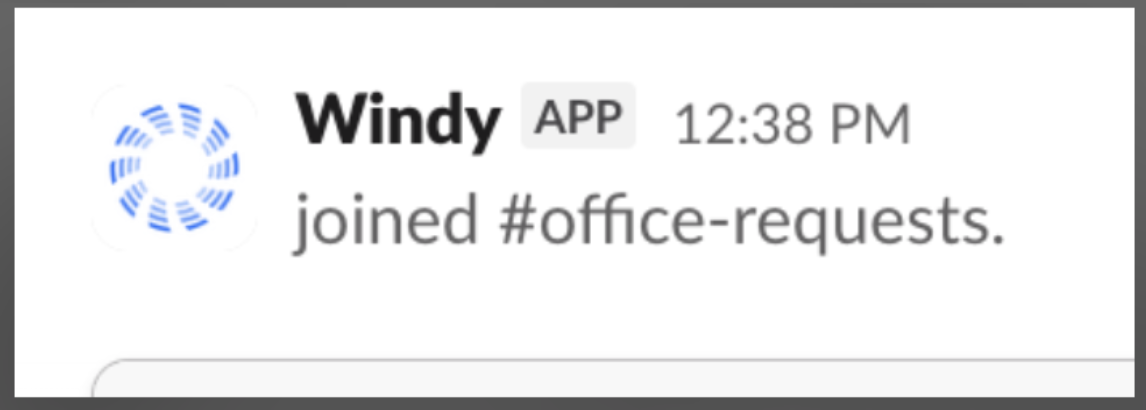 **No notifications are sent** when Windy joins a channel. Members will only see a message in the channel history if they're actively viewing it.
## Adding Windy to private channels
Windy can join private channels using the same methods as public channels:
1. Open the private channel
2. Type `/invite` and select **Add apps to this channel**
3. Search for **Windy** and add the app
Or use the **Integrations** tab method described above.
Adding Windy to a private channel **never exposes that channel's messages to anyone outside the channel**. Windmill enforces the same membership rules Slack does: only human members of the private channel can see its raw messages in Windmill. Managers, admins, and other employees who aren't in the channel cannot read its content, even though Windy is present.
Private channels stay private. Inviting Windy to a private channel does not grant visibility to people who aren't already members.
## Removing Windy from channels
If you need to remove Windy from a channel, there are two ways to do it:
**In Slack:**
1. Open the channel
2. Type `/remove @Windy`
3. Confirm removal
**In the Windmill dashboard (Admins only):**
1. Go to **Settings > Integrations > Slack**
2. Click **Settings**
3. Find the channel you want to remove Windy from
4. Click the three dots
5. Select **Leave channel**
## What Windy can see
When you add Windy to a channel, Windy can:
* See messages and threads in that channel
* Identify who's collaborating and on what
* Detect key moments for feedback collection
* Reference projects and activities in recaps
Windy mirrors your existing access controls. Team members only see information in Windmill that they already have permission to access in Slack. Raw messages from a private channel are only ever visible to members of that private channel — adding Windy doesn't change that.
Windy doesn't need to be in every channel to be effective, but the more
context Windy has, the better they perform. Start with public channels and add
private channels as needed.
## FAQs
No. Adding Windy to a public or private channel allows Windmill to read that channel's messages as context, but Windy doesn't respond to @mentions or questions in the channel. To ask Windy a question or start a conversation, message Windy directly in Slack.
**No, Windy does not send notifications when added to a channel.**
When you add Windy to a Slack channel, channel members will NOT receive any notifications, pings, or alerts.
A message will appear in the channel that says "Windy has joined this channel", but this is just a visible message in the channel history — it doesn't trigger any notifications to channel members. People will only see this message if they're actively viewing the channel.
**No.** Adding Windy to a private channel does not expose that channel's messages to anyone who isn't already a member. Windmill enforces Slack's permissions: if you can't read the channel in Slack, you can't read it in Windmill.
For workspace-wide engagement data that doesn't involve message content, see [Slack Business Analytics](/integrations/slack-analytics), which only returns aggregate counts.
The easiest way to add Windy to multiple channels is to enable **Autojoin all public channels** in Settings > Integrations > Slack. This automatically adds Windy to all public channels without needing to do it manually for each one.
For private channels, you'll need to add Windy individually to each channel you want them to access.
## Next steps
Now that Windy has access to your Slack channels, learn more about [how to talk to Windy](/windy/talking-to-windy) and what to expect from interactions.
**No notifications are sent** when Windy joins a channel. Members will only see a message in the channel history if they're actively viewing it.
## Adding Windy to private channels
Windy can join private channels using the same methods as public channels:
1. Open the private channel
2. Type `/invite` and select **Add apps to this channel**
3. Search for **Windy** and add the app
Or use the **Integrations** tab method described above.
Adding Windy to a private channel **never exposes that channel's messages to anyone outside the channel**. Windmill enforces the same membership rules Slack does: only human members of the private channel can see its raw messages in Windmill. Managers, admins, and other employees who aren't in the channel cannot read its content, even though Windy is present.
Private channels stay private. Inviting Windy to a private channel does not grant visibility to people who aren't already members.
## Removing Windy from channels
If you need to remove Windy from a channel, there are two ways to do it:
**In Slack:**
1. Open the channel
2. Type `/remove @Windy`
3. Confirm removal
**In the Windmill dashboard (Admins only):**
1. Go to **Settings > Integrations > Slack**
2. Click **Settings**
3. Find the channel you want to remove Windy from
4. Click the three dots
5. Select **Leave channel**
## What Windy can see
When you add Windy to a channel, Windy can:
* See messages and threads in that channel
* Identify who's collaborating and on what
* Detect key moments for feedback collection
* Reference projects and activities in recaps
Windy mirrors your existing access controls. Team members only see information in Windmill that they already have permission to access in Slack. Raw messages from a private channel are only ever visible to members of that private channel — adding Windy doesn't change that.
Windy doesn't need to be in every channel to be effective, but the more
context Windy has, the better they perform. Start with public channels and add
private channels as needed.
## FAQs
No. Adding Windy to a public or private channel allows Windmill to read that channel's messages as context, but Windy doesn't respond to @mentions or questions in the channel. To ask Windy a question or start a conversation, message Windy directly in Slack.
**No, Windy does not send notifications when added to a channel.**
When you add Windy to a Slack channel, channel members will NOT receive any notifications, pings, or alerts.
A message will appear in the channel that says "Windy has joined this channel", but this is just a visible message in the channel history — it doesn't trigger any notifications to channel members. People will only see this message if they're actively viewing the channel.
**No.** Adding Windy to a private channel does not expose that channel's messages to anyone who isn't already a member. Windmill enforces Slack's permissions: if you can't read the channel in Slack, you can't read it in Windmill.
For workspace-wide engagement data that doesn't involve message content, see [Slack Business Analytics](/integrations/slack-analytics), which only returns aggregate counts.
The easiest way to add Windy to multiple channels is to enable **Autojoin all public channels** in Settings > Integrations > Slack. This automatically adds Windy to all public channels without needing to do it manually for each one.
For private channels, you'll need to add Windy individually to each channel you want them to access.
## Next steps
Now that Windy has access to your Slack channels, learn more about [how to talk to Windy](/windy/talking-to-windy) and what to expect from interactions.