> ## Documentation Index
> Fetch the complete documentation index at: https://help.gowindmill.com/llms.txt
> Use this file to discover all available pages before exploring further.
# Slack
> Connect Slack to Windmill so Windy can DM your team, run 1:1 prep, deliver pulse surveys, collect feedback, and post shoutouts directly inside Slack.
## Benefits of connecting Slack to Windmill
Slack is where most day-to-day work happens — decisions, questions, collaboration, problem-solving.\
Connecting Slack to Windmill allows that context to be remembered and used to support performance conversations without requiring anyone to write summaries or “manage up.”
* Captures work as it happens — not at review time
* Ensures employees get credit for contributions that are usually invisible
* Helps managers remember accomplishments and follow-through across the year
* Reduces time spent preparing for reviews, calibrations, and promotions
* Makes feedback and evaluation more fair, grounded, and accurate
Windmill transforms ongoing Slack collaboration into structured insight for 1:1s, coaching, and performance reviews. In addition, Slack is where your team interacts with Windy, Windmill's AI assistant. Connecting Slack is essential to using Windmill.
## Setup
As part of onboarding, you'll connect Slack to Windmill (our Slack app's name is Windy). This is the foundation of all Windy communication.
However, upon connecting Slack, Windy won't automatically join any channels or read any messages. You need to add Windy to channels to experience the full power of the integration.
Windy is not added to Slack DMs. You can chat with Windy in your own Slack DM, but you add Windy to public or private channels when you want Windy to read channel context.
## Adding Windy to channels
We recommend having Windmill "Autojoin all public channels" for new users. This gives Windy the most context about team collaboration.
**To enable autojoin:**
1. Go to **Settings** in Windmill
2. Select **Integrations**
3. Select **Slack**
4. Go to **Settings** and select **Autojoin all public channels**
**To add Windy to specific channels:**
There are two ways to add Windy to individual channels or private channels:
**Option 1: Using /invite in Slack**
1. In the Slack channel you want Windy to join, type `/invite`
2. Select **Add apps to this channel**
3. Search for **Windy** and add the app
**Option 2: Through the Members list**
1. Navigate to the channel and click the channel name at the top
2. Click the **Integrations** tab
3. Click **Add apps**
4. Search for **Windmill** and add the app
## What happens when Windy joins a channel?
When you add Windy to a Slack channel, **Windy does NOT send a notification** to channel members. This means people won't get pinged or notified when Windy is added.
However, a message will appear in the channel that says "Windy joined #channel-name". This message is visible to anyone viewing the channel, but it doesn't trigger notifications, mentions, or alerts to channel members.
Once Windy has joined a channel, Windmill can sync messages and Slack canvases from that channel and use them as context. The synced data includes messages in threads and outside of threads, Slack canvases, users, and channels. Windmill does not currently store reactions as synced channel data.
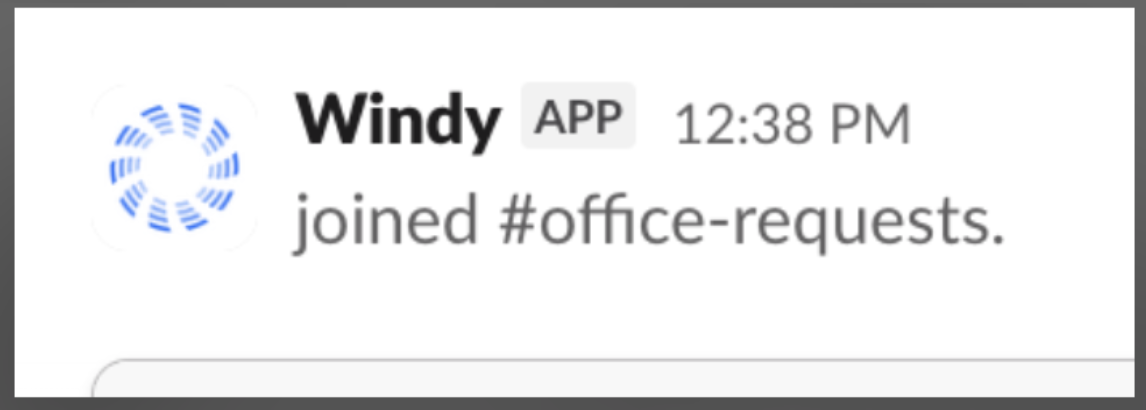 **No notifications are sent** when Windy joins a channel. Members will only see a message in the channel history if they're actively viewing it.
## Message access and privacy
Windmill mirrors Slack's permissions. **You can only see messages in Windmill that you can already see in Slack.**
* **Public channels:** If Windy is in a public channel, anyone on your team who can see that channel in Slack can see its messages in Windmill.
* **Private channels:** Even when Windy is added to a private channel, **only the human members of that private channel can see its raw messages in Windmill**. Adding Windy never exposes private channel content to people outside the channel — including managers, admins, or anyone else who isn't a member.
* **DMs and group DMs:** You can chat with Windy in your own Slack DM. Windy is not added to DMs or group DMs between other people, so that DM content is never read or stored.
Adding Windy to a private channel does **not** make that channel's messages visible to people who aren't already members. Private stays private. Windmill enforces the same membership rules Slack does.
For workspace-wide engagement signals that don't involve message content, see [Slack Business Analytics](/integrations/slack-analytics) — it pulls aggregate activity counts only (never message content, channel names, or DM participants).
## Slack shortcuts
Slack shortcuts let you quickly send information to Windmill without leaving Slack. You can create shoutouts, add private notes, and add items to your 1:1 agendas—all directly from Slack.
### Available shortcuts
| Shortcut | What it does |
| ------------------------- | ------------------------------------------------------------ |
| **Create a shoutout** | Publicly recognize a teammate for their work |
| **Create a private note** | Save a personal note about an employee (only visible to you) |
| **Add to 1:1 agenda** | Add a discussion topic to an upcoming 1:1 meeting |
### How to use shortcuts
There are three ways to access Slack shortcuts:
#### From a message (recommended)
This is the fastest way to capture context from a conversation.
Hover over the message and click the three dots (**...**) menu, or right-click the message directly.
Choose **Create a shoutout**, **Create a private note**, or **Add to 1:1 agenda** from the menu.
A modal opens with the message text pre-filled. Edit the content if needed, select the relevant employees, and submit.
When you use a shortcut from a message, Windmill automatically pre-fills the content and suggests relevant employees based on the conversation.
#### From the global search bar
Use the global search bar when you want to create something from scratch.
Press **Cmd+K** (Mac) or **Ctrl+K** (Windows) to open Slack's global search bar.
Type "shoutout", "private note", or "1:1 agenda" to find the shortcut you need, then select it.
Enter your content and select the relevant employees.
#### Using slash commands
Type these commands directly in Slack:
| Command | What it does |
| --------------- | --------------------------- |
| `/shoutout` | Create a shoutout |
| `/private-note` | Create a private note |
| `/1-1-agenda` | Add an item to a 1:1 agenda |
You can also include your message directly after the command. For example: `/shoutout Shoutout to Mark for leading the product launch!`
### Create a shoutout
Shoutouts let you publicly recognize teammates for their contributions. When you create a shoutout from Slack, it's saved in Windmill and visible to others.
An Admin or HR Admin must enable shoutouts for your company and configure a shoutouts channel in Slack before you can use this shortcut. See [Shoutouts](/features/shoutouts) for setup instructions.
Right-click a message and select **Create a shoutout**, or use the `/shoutout` command.
Add or edit the recognition message. Be specific about what the person did well.
Choose the teammates you want to recognize. You can select multiple people.
Your shoutout is saved and shared in Windmill.
### Create a private note
Private notes are personal records about employees—only you can see them. They're useful for tracking observations, feedback, or context you want to remember for reviews or 1:1s.
Right-click a message and select **Create a private note**, or use the `/private-note` command.
The message content is pre-filled as a quote. Add any additional context.
Choose who this note is about. You can select multiple employees, including yourself.
Your note is saved privately in Windmill.
Private notes are only visible to you. The employees you tag won't be notified or see the note.
### Add to 1:1 agenda
Capture discussion topics as they come up and add them directly to your upcoming 1:1 meetings.
Right-click a message and select **Add to 1:1 agenda**, or use the `/1-1-agenda` command.
Edit or add context to the topic you want to discuss.
Choose which 1:1 partners should receive this agenda item. Only employees with upcoming 1:1 meetings with you will appear.
The item is added to your 1:1 agenda page with a link back to the original Slack message.
You can only add agenda items for employees you have a scheduled 1:1 with. If someone doesn't appear in the list, check that you have an upcoming 1:1 meeting with them.
### Enabling shortcuts
Slack shortcuts require additional permissions. If you don't see the shortcuts in your Slack workspace, an admin needs to re-authenticate the Slack integration.
Navigate to the [Integrations page](https://app.gowindmill.com/COMPANY/config/integrations) in Windmill.
Click on **Slack** in the list of integrations.
Click **Re-authenticate** to grant the additional permissions needed for shortcuts.
## Permissions
You need the ability to connect Slack to third-party applications and install Slack apps.
## Slack OAuth scopes
When you install Windy, Slack will ask you to approve a set of OAuth scopes. The table below lists every scope Windy requests and why it's required.
| Scope | Why Windy needs it |
| ---------------------------- | ------------------------------------------------------------------------------------------------------------------------------------------------------------ |
| `app_mentions:read` | Respond when a user pings `@Windy` in a DM. |
| `canvases:read` | Sync Slack canvases from channels where Windy has been added. |
| `channels:history` | Build context from public channels — the core of 1:1s, coaching, and reviews. |
| `channels:join` | Add Windy to public channels via autojoin or the Windmill Dashboard. |
| `channels:manage` | Power the "Leave channel" action in the Windmill Dashboard. Windy never renames, archives, or modifies channels. |
| `channels:read` | Resolve channel references and let admins pick channels in the UI. |
| `chat:write` | Send DMs (pulse surveys, feedback requests, 1:1 nudges, agenda deliveries) and post in channels Windy has joined. |
| `chat:write.public` | Deliver ephemeral messages and pulse notifications reliably, even when Windy isn't in the channel. Windy never posts unless pulse notifications are enabled. |
| `commands` | Run the `/shoutout`, `/private-note`, and `/1-1-agenda` slash commands. See [Slack shortcuts](#slack-shortcuts). |
| `files:read` | Include shared files as context alongside messages. |
| `files:write` | Upload files Windy generates, such as shortcut attachments. |
| `groups:history` | Build context from private channels Windy is invited to. Content stays visible only to that channel's human members. |
| `groups:read` | Resolve private-channel references and metadata. |
| `groups:write` | Manage settings on private channels Windy created. |
| `im:history` | Follow up on its own DM conversations. Windy is never added to DMs between other users. |
| `links:read` / `links:write` | Show rich previews when Windmill links are pasted into Slack. |
| `lists:read` | Use Slack Lists referenced in channels as context. |
| `reactions:read` | Read reaction metadata if needed for Slack interactions. Windmill does not currently store reactions as synced channel data. |
| `reactions:write` | Add reactions to messages. |
| `team:read` | Display the connected workspace in Windmill's integrations UI. |
| `users.profile:read` | Match Slack users to Windmill employees and display profile data. |
| `users:read` | Map Slack users to Windmill employees. |
| `users:read.email` | Link a Slack account to a Windmill employee record by email. |
| `usergroups:read` | Resolve `@usergroup` mentions in messages. |
## FAQs
**No, Windy does not send notifications when added to a channel.**
When you add Windy to a Slack channel, channel members will NOT receive any notifications, pings, or alerts.
A message will appear in the channel that says "Windy has joined this channel", but this is just a visible message in the channel history — it doesn't trigger any notifications to channel members. People will only see this message if they're actively viewing the channel.
In Slack, type `/remove @Windy` in the channel you want to remove Windy from.
Admins can also remove Windy through the Windmill Dashboard:
1. Go to **Settings > Integrations > Slack**
2. Click **Settings**
3. Find the channel you want to remove Windy from
4. Click the three dots and select **Leave channel**
**No.** Windmill mirrors Slack's permissions exactly. Raw messages from a private channel are **never** visible to anyone who isn't a member of that channel — even if Windy has been added to it.
Adding Windy to a private channel does not change who can see the content. If you can't read the channel in Slack, you can't read it in Windmill.
The only Slack data Windmill exposes outside of channel membership is **aggregate activity counts** from [Slack Business Analytics](/integrations/slack-analytics), such as "Alex sent 42 messages on Monday." Slack Business Analytics never exposes message content, channel names, or DM participants.
**Slack Business Analytics** is only for Slack Business+ and Enterprise Grid plans. This integration provides additional stats about your company's Slack usage but doesn't give Windmill access to messages or channels.
**Slack** (the standard integration) works with any Slack plan. This integration doesn't give Windmill access to messages until you add Windy to specific channels.
Windmill stores the following data:
* Messages (both in threads and outside of threads)
* Slack canvases in channels where Windy has been added
* Users
* Channels
Windmill only has access to channels where Windy has been added. Slack canvases follow the same channel membership rules as messages. We don't currently store reactions as synced channel data. Slack scopes may permit additional content in the future, but Windmill only syncs the data listed above today.
No. Windy is added to Slack channels, not DMs. You can chat with Windy in your own Slack DM, but add Windy to public or private channels when you want Windy to read channel context.
This happens in **Slack Connect / shared external channels** (channels shared with another organization). Each organization brings its own Windy into the channel, so you may see two "Windy" entries when you type `@`.
Tell them apart by the avatar:
* The **circle**-avatar Windy is **your own workspace's Windy** — @mention this one.
* The **square**-avatar Windy is the **partner organization's** Windy app, surfaced into the shared channel from their workspace. Mentioning it won't reach your assistant.
In a shared external channel, always pick the circle Windy.
**No notifications are sent** when Windy joins a channel. Members will only see a message in the channel history if they're actively viewing it.
## Message access and privacy
Windmill mirrors Slack's permissions. **You can only see messages in Windmill that you can already see in Slack.**
* **Public channels:** If Windy is in a public channel, anyone on your team who can see that channel in Slack can see its messages in Windmill.
* **Private channels:** Even when Windy is added to a private channel, **only the human members of that private channel can see its raw messages in Windmill**. Adding Windy never exposes private channel content to people outside the channel — including managers, admins, or anyone else who isn't a member.
* **DMs and group DMs:** You can chat with Windy in your own Slack DM. Windy is not added to DMs or group DMs between other people, so that DM content is never read or stored.
Adding Windy to a private channel does **not** make that channel's messages visible to people who aren't already members. Private stays private. Windmill enforces the same membership rules Slack does.
For workspace-wide engagement signals that don't involve message content, see [Slack Business Analytics](/integrations/slack-analytics) — it pulls aggregate activity counts only (never message content, channel names, or DM participants).
## Slack shortcuts
Slack shortcuts let you quickly send information to Windmill without leaving Slack. You can create shoutouts, add private notes, and add items to your 1:1 agendas—all directly from Slack.
### Available shortcuts
| Shortcut | What it does |
| ------------------------- | ------------------------------------------------------------ |
| **Create a shoutout** | Publicly recognize a teammate for their work |
| **Create a private note** | Save a personal note about an employee (only visible to you) |
| **Add to 1:1 agenda** | Add a discussion topic to an upcoming 1:1 meeting |
### How to use shortcuts
There are three ways to access Slack shortcuts:
#### From a message (recommended)
This is the fastest way to capture context from a conversation.
Hover over the message and click the three dots (**...**) menu, or right-click the message directly.
Choose **Create a shoutout**, **Create a private note**, or **Add to 1:1 agenda** from the menu.
A modal opens with the message text pre-filled. Edit the content if needed, select the relevant employees, and submit.
When you use a shortcut from a message, Windmill automatically pre-fills the content and suggests relevant employees based on the conversation.
#### From the global search bar
Use the global search bar when you want to create something from scratch.
Press **Cmd+K** (Mac) or **Ctrl+K** (Windows) to open Slack's global search bar.
Type "shoutout", "private note", or "1:1 agenda" to find the shortcut you need, then select it.
Enter your content and select the relevant employees.
#### Using slash commands
Type these commands directly in Slack:
| Command | What it does |
| --------------- | --------------------------- |
| `/shoutout` | Create a shoutout |
| `/private-note` | Create a private note |
| `/1-1-agenda` | Add an item to a 1:1 agenda |
You can also include your message directly after the command. For example: `/shoutout Shoutout to Mark for leading the product launch!`
### Create a shoutout
Shoutouts let you publicly recognize teammates for their contributions. When you create a shoutout from Slack, it's saved in Windmill and visible to others.
An Admin or HR Admin must enable shoutouts for your company and configure a shoutouts channel in Slack before you can use this shortcut. See [Shoutouts](/features/shoutouts) for setup instructions.
Right-click a message and select **Create a shoutout**, or use the `/shoutout` command.
Add or edit the recognition message. Be specific about what the person did well.
Choose the teammates you want to recognize. You can select multiple people.
Your shoutout is saved and shared in Windmill.
### Create a private note
Private notes are personal records about employees—only you can see them. They're useful for tracking observations, feedback, or context you want to remember for reviews or 1:1s.
Right-click a message and select **Create a private note**, or use the `/private-note` command.
The message content is pre-filled as a quote. Add any additional context.
Choose who this note is about. You can select multiple employees, including yourself.
Your note is saved privately in Windmill.
Private notes are only visible to you. The employees you tag won't be notified or see the note.
### Add to 1:1 agenda
Capture discussion topics as they come up and add them directly to your upcoming 1:1 meetings.
Right-click a message and select **Add to 1:1 agenda**, or use the `/1-1-agenda` command.
Edit or add context to the topic you want to discuss.
Choose which 1:1 partners should receive this agenda item. Only employees with upcoming 1:1 meetings with you will appear.
The item is added to your 1:1 agenda page with a link back to the original Slack message.
You can only add agenda items for employees you have a scheduled 1:1 with. If someone doesn't appear in the list, check that you have an upcoming 1:1 meeting with them.
### Enabling shortcuts
Slack shortcuts require additional permissions. If you don't see the shortcuts in your Slack workspace, an admin needs to re-authenticate the Slack integration.
Navigate to the [Integrations page](https://app.gowindmill.com/COMPANY/config/integrations) in Windmill.
Click on **Slack** in the list of integrations.
Click **Re-authenticate** to grant the additional permissions needed for shortcuts.
## Permissions
You need the ability to connect Slack to third-party applications and install Slack apps.
## Slack OAuth scopes
When you install Windy, Slack will ask you to approve a set of OAuth scopes. The table below lists every scope Windy requests and why it's required.
| Scope | Why Windy needs it |
| ---------------------------- | ------------------------------------------------------------------------------------------------------------------------------------------------------------ |
| `app_mentions:read` | Respond when a user pings `@Windy` in a DM. |
| `canvases:read` | Sync Slack canvases from channels where Windy has been added. |
| `channels:history` | Build context from public channels — the core of 1:1s, coaching, and reviews. |
| `channels:join` | Add Windy to public channels via autojoin or the Windmill Dashboard. |
| `channels:manage` | Power the "Leave channel" action in the Windmill Dashboard. Windy never renames, archives, or modifies channels. |
| `channels:read` | Resolve channel references and let admins pick channels in the UI. |
| `chat:write` | Send DMs (pulse surveys, feedback requests, 1:1 nudges, agenda deliveries) and post in channels Windy has joined. |
| `chat:write.public` | Deliver ephemeral messages and pulse notifications reliably, even when Windy isn't in the channel. Windy never posts unless pulse notifications are enabled. |
| `commands` | Run the `/shoutout`, `/private-note`, and `/1-1-agenda` slash commands. See [Slack shortcuts](#slack-shortcuts). |
| `files:read` | Include shared files as context alongside messages. |
| `files:write` | Upload files Windy generates, such as shortcut attachments. |
| `groups:history` | Build context from private channels Windy is invited to. Content stays visible only to that channel's human members. |
| `groups:read` | Resolve private-channel references and metadata. |
| `groups:write` | Manage settings on private channels Windy created. |
| `im:history` | Follow up on its own DM conversations. Windy is never added to DMs between other users. |
| `links:read` / `links:write` | Show rich previews when Windmill links are pasted into Slack. |
| `lists:read` | Use Slack Lists referenced in channels as context. |
| `reactions:read` | Read reaction metadata if needed for Slack interactions. Windmill does not currently store reactions as synced channel data. |
| `reactions:write` | Add reactions to messages. |
| `team:read` | Display the connected workspace in Windmill's integrations UI. |
| `users.profile:read` | Match Slack users to Windmill employees and display profile data. |
| `users:read` | Map Slack users to Windmill employees. |
| `users:read.email` | Link a Slack account to a Windmill employee record by email. |
| `usergroups:read` | Resolve `@usergroup` mentions in messages. |
## FAQs
**No, Windy does not send notifications when added to a channel.**
When you add Windy to a Slack channel, channel members will NOT receive any notifications, pings, or alerts.
A message will appear in the channel that says "Windy has joined this channel", but this is just a visible message in the channel history — it doesn't trigger any notifications to channel members. People will only see this message if they're actively viewing the channel.
In Slack, type `/remove @Windy` in the channel you want to remove Windy from.
Admins can also remove Windy through the Windmill Dashboard:
1. Go to **Settings > Integrations > Slack**
2. Click **Settings**
3. Find the channel you want to remove Windy from
4. Click the three dots and select **Leave channel**
**No.** Windmill mirrors Slack's permissions exactly. Raw messages from a private channel are **never** visible to anyone who isn't a member of that channel — even if Windy has been added to it.
Adding Windy to a private channel does not change who can see the content. If you can't read the channel in Slack, you can't read it in Windmill.
The only Slack data Windmill exposes outside of channel membership is **aggregate activity counts** from [Slack Business Analytics](/integrations/slack-analytics), such as "Alex sent 42 messages on Monday." Slack Business Analytics never exposes message content, channel names, or DM participants.
**Slack Business Analytics** is only for Slack Business+ and Enterprise Grid plans. This integration provides additional stats about your company's Slack usage but doesn't give Windmill access to messages or channels.
**Slack** (the standard integration) works with any Slack plan. This integration doesn't give Windmill access to messages until you add Windy to specific channels.
Windmill stores the following data:
* Messages (both in threads and outside of threads)
* Slack canvases in channels where Windy has been added
* Users
* Channels
Windmill only has access to channels where Windy has been added. Slack canvases follow the same channel membership rules as messages. We don't currently store reactions as synced channel data. Slack scopes may permit additional content in the future, but Windmill only syncs the data listed above today.
No. Windy is added to Slack channels, not DMs. You can chat with Windy in your own Slack DM, but add Windy to public or private channels when you want Windy to read channel context.
This happens in **Slack Connect / shared external channels** (channels shared with another organization). Each organization brings its own Windy into the channel, so you may see two "Windy" entries when you type `@`.
Tell them apart by the avatar:
* The **circle**-avatar Windy is **your own workspace's Windy** — @mention this one.
* The **square**-avatar Windy is the **partner organization's** Windy app, surfaced into the shared channel from their workspace. Mentioning it won't reach your assistant.
In a shared external channel, always pick the circle Windy.