> ## Documentation Index
> Fetch the complete documentation index at: https://help.gowindmill.com/llms.txt
> Use this file to discover all available pages before exploring further.
# Notion
> Connect Notion to Windmill so pages, edits, and documents flow into recaps, 1:1 prep, and Windy's context for the people working in your Notion workspace.
## Benefits of connecting Notion to Windmill
Connecting Notion to Windmill ensures planning, documentation, and project work becomes visible in performance conversations — without employees needing to summarize or translate their work manually.
* Automatically captures contributions to docs, specs, research, and project planning
* Recognizes the invisible but critical thinking work that often gets missed in reviews
* Reduces the time managers and employees spend preparing for review cycles
* Helps managers coach using real examples of communication, clarity, and collaboration
* Makes performance reviews more fair and grounded in the full scope of someone's work
Windmill turns ongoing Notion activity into meaningful context for reflection, coaching, and evaluation.
## Connection types
When connecting Notion to Windmill, you'll choose between two connection types. The setup flow is the same for both — the difference is **who can see the synced data**.
### Account
An account connection is set up on behalf of your organization. Any data synced from this integration is **globally available to all Windmill members** in your company. This is ideal when your team uses shared Notion workspaces and you want everyone to benefit from the synced context.
Only Admins, HR Admins, and Integration Managers can create account connections.
### Personal
A personal connection is tied to an individual. Any data synced from this integration is **only visible to you** — no one else in your Windmill organization can see it. This is a good option if you want to connect personal Notion pages or private notes without sharing them across your team.
Any Windmill member can create a personal connection, as long as their Notion workspace allows them to add or use the Windmill connection.
### Choosing a connection type
| | Account | Personal |
| --------------------- | ------------------------------------------- | ----------------------------- |
| **Who can create it** | Admins only | Any member |
| **Data visibility** | All Windmill members | Only you |
| **Best for** | Shared workspaces, team docs, project pages | Private notes, personal pages |
## Notion Enterprise workspace settings
Some Notion Enterprise workspaces restrict which integrations members can add. Notion calls integrations **connections** in its settings. If a member sees an error while creating a personal Notion connection in Windmill, the fix is usually in Notion's Enterprise connection settings.
Start setup from Windmill, not from Notion. Installing Windmill from Notion
alone may add the connection to the workspace, but each Windmill member still
needs to finish the **Personal** setup flow in Windmill.
For personal Windmill setup, check the **Member** tab in Notion's connection
settings. The **Workspace** tab is for Notion's workspace-wide security and
compliance integrations.
### Approving Windmill for members
A Notion workspace owner can approve Windmill for members without making every member a workspace owner.
In Notion, go to **Settings → Connections**.
Open the **Member** tab and check **Restrict members from adding connections**.
If this is set to **No restrictions**, members should be able to connect Windmill from Windmill. If this is set to **Only from approved list**, Windmill needs to be approved first.
If **Windmill** does not appear in the approved connection dropdown, a Notion workspace owner needs to install Windmill once first.
The owner should go to [**Settings → Integrations**](https://app.gowindmill.com/COMPANY/config/integrations) in Windmill, select **Notion**, and complete either an **Account** connection or their own **Personal** connection.
Back in Notion, go to **Settings → Connections → Member** and add **Windmill** to the approved connections list. Installing Windmill is not always enough on its own; members can still be blocked until Windmill is approved here.
Members can now return to Windmill, choose **Notion**, select **Personal**, and approve access to the pages they want to share.
### Managing page access in Enterprise workspaces
Notion Enterprise workspace owners can also control who is allowed to connect or disconnect integrations from specific pages. If Windmill is approved but a member still cannot select or share pages, check page access settings in Notion.
In Notion, go to **Settings → Connections → Member**.
Click the **•••** menu next to **Windmill**, then select **Manage page access**.
Under **Select pages**, choose the pages Windmill can access. Under **Who can manage page access**, choose whether members can manage page access themselves or only workspace owners can.
If members should be able to manage their own personal page selections, set page access management to the default member-access option. If your Notion owner keeps this restricted to workspace owners, the owner will need to manage Windmill page access for members.
For more detail, see Notion's help docs for [Enterprise connection settings](https://www.notion.com/help/enterprise-connection-settings) and [adding and managing connections](https://www.notion.com/help/add-and-manage-connections-with-the-api).
## Setting up the Notion integration
Navigate to [**Integrations**](https://app.gowindmill.com/COMPANY/config/integrations) in your Windmill settings.
Find **Notion** in the list of available integrations and click **Connect**.
Select **Account** to connect on behalf of your organization, or **Personal** to connect your own account.
You'll be redirected to Notion to approve access for Windmill.
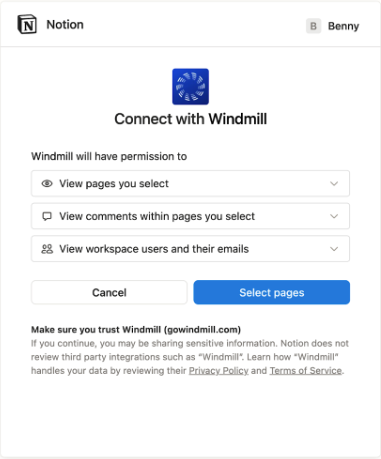 **Windmill will request permission to:**
* View pages you select
* View comments within pages you select
* View workspace users and their emails
Click **Select pages** to move forward.
Select the pages you'd like Windmill to access. Windmill will only ever see the pages you select here, plus any subpages nested inside them — nothing else in your workspace.
**Windmill will request permission to:**
* View pages you select
* View comments within pages you select
* View workspace users and their emails
Click **Select pages** to move forward.
Select the pages you'd like Windmill to access. Windmill will only ever see the pages you select here, plus any subpages nested inside them — nothing else in your workspace.
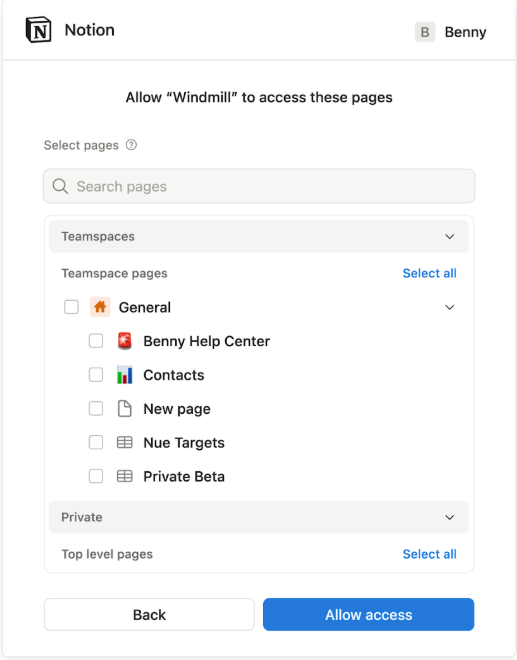 **From here, you can:**
* Browse your **Teamspaces** and **Private** sections
* **Select all** or **Deselect all** pages at once
* Use the search bar to quickly find specific pages
* Expand folders to include or exclude subpages
Selecting a parent page also shares the subpages nested inside it, including ones you add later. New top-level pages aren't added automatically — you can share those at any time (see [Managing visibility and access](#managing-visibility-and-access)).
After you've made your selections, click **Allow access** to complete setup.
## How Page Access Works
Windmill's access to your Notion workspace is a **point-in-time selection**. When you connect, you choose which pages to share — and from then on, Windmill can only see those pages and the subpages nested inside them. Nothing else in your workspace is visible.
This has a few important implications:
* **New pages aren't shared automatically.** A page you create later won't sync on its own. The one exception is subpages: a page created inside a page you already shared inherits that access automatically.
* **A teamspace doesn't grow your access.** Selecting pages from a teamspace shares the pages that exist at that moment — not the teamspace itself. New top-level pages added to it later won't sync until you share them.
* **Unselected pages stay private.** Any page you didn't select stays invisible to Windmill, even if you have access to it yourself in Notion.
* **You stay in control.** You can add or remove shared pages at any time — see [Managing visibility and access](#managing-visibility-and-access) below.
To share a whole branch of your workspace, select its **top-level page** in the picker — every subpage inside it is included, now and as you add more. Just remember this works for pages, not teamspaces.
## Managing Visibility and Access
Because access is set when you connect, you'll need to update it whenever you want Windmill to see more (or fewer) pages. There are two ways to do this.
### From Windmill
Go to [**Settings → Integrations → Notion → Manage access**](https://app.gowindmill.com/COMPANY/config/integrations). From here, you can:
* Reconnect to Notion if access expires
* Reopen the Notion page picker to see which pages are currently selected and add or remove shared pages
* Disconnect the integration entirely
### From Notion
You can also share a single page with Windmill directly inside Notion:
1. Open the page and click the **•••** menu in the top-right corner.
2. Click **Add connections**, then select **Windmill**.
To stop sharing a page, open the same **•••** menu, hover over **Windmill** under connections, and click **Disconnect**.
If a member with a personal connection is archived, their personal Notion connection is automatically removed.
## Meeting notes and transcripts
If your Notion pages include AI-generated meeting notes, Windmill pulls in the **summary** of the meeting on demand when Windy references that page — but not the raw transcript.
* Windy can see the meeting title, date, summary, and any notes written on the page
* The full transcript itself is not synced or stored in Windmill
* Meeting notes pulled from Notion are **not linked to 1:1s** in Windmill
If your team relies on transcripts being available in Windmill (for example, to power 1:1 recaps or review context), connect a dedicated meeting source such as Zoom, Google Meet, Granola, or Gong instead of relying on Notion.
## Best practices
* Share only pages relevant to your team's use of Windmill (e.g., meeting notes, team goals, or planning docs).
* Share a **parent page** to automatically include the subpages within it. New top-level pages — including ones added to a teamspace later — must be shared manually.
* Use an **account** connection for shared team workspaces so all members benefit from the context.
* Use a **personal** connection for private notes or pages you don't want visible to others.
* Revisit your integration settings if your Notion workspace structure changes.
* Keep sensitive or unrelated pages unselected to maintain privacy and data security.
## FAQs
Yes. An admin can set up an account connection for shared workspaces, and individual members can also create their own personal connections for private pages. The two work independently.
An account connection syncs data that's visible to all Windmill members in your organization. A personal connection syncs data that's only visible to you. The setup process is the same for both — the difference is who can see the synced data.
Only Admins, HR Admins, and Integration Managers can create account connections. Any Windmill member can create a personal connection, as long as their Notion workspace allows them to add or use the Windmill connection.
Ask a Notion workspace owner to approve Windmill in **Settings → Connections → Member**. If Windmill is not available in the approved connection dropdown yet, the workspace owner needs to install Windmill once from Windmill first. After Windmill is installed and approved, members can connect their own personal Notion accounts from Windmill.
No. On Notion Enterprise, a workspace owner can keep member restrictions enabled and add **Windmill** to the approved connections list. Members can then create personal Windmill connections without being promoted to workspace owner.
Check two Notion settings. First, confirm **Windmill** appears under **Settings → Connections → Member → Approved connections**. Second, open the **•••** menu next to **Windmill** and check **Manage page access**. If page access management is restricted to workspace owners, members may not be able to select or update pages themselves.
When a member is archived in Windmill, their personal Notion connection is automatically removed and the associated data is no longer accessible.
Only if the new page lives inside a page you already shared — subpages inherit their parent's access. A new top-level page stays invisible to Windmill until you share it, even if it's in a teamspace you've already pulled pages from. Windmill's access reflects the pages you selected when you connected, not your whole workspace.
Two ways. In Windmill, go to **Settings → Integrations → Notion → Manage access** and reopen the page picker. Or, in Notion, open the page, click the **•••** menu, choose **Add connections**, and select **Windmill**.
In Windmill, go to **Settings → Integrations → Notion → Manage access** and reopen the Notion page picker. The picker shows which pages are currently selected, and you can add or remove pages from there.
Deselect it in **Manage access** in Windmill, or open the page's **•••** menu in Notion, hover over **Windmill**, and click **Disconnect**. Windmill stops seeing that page right away.
**From here, you can:**
* Browse your **Teamspaces** and **Private** sections
* **Select all** or **Deselect all** pages at once
* Use the search bar to quickly find specific pages
* Expand folders to include or exclude subpages
Selecting a parent page also shares the subpages nested inside it, including ones you add later. New top-level pages aren't added automatically — you can share those at any time (see [Managing visibility and access](#managing-visibility-and-access)).
After you've made your selections, click **Allow access** to complete setup.
## How Page Access Works
Windmill's access to your Notion workspace is a **point-in-time selection**. When you connect, you choose which pages to share — and from then on, Windmill can only see those pages and the subpages nested inside them. Nothing else in your workspace is visible.
This has a few important implications:
* **New pages aren't shared automatically.** A page you create later won't sync on its own. The one exception is subpages: a page created inside a page you already shared inherits that access automatically.
* **A teamspace doesn't grow your access.** Selecting pages from a teamspace shares the pages that exist at that moment — not the teamspace itself. New top-level pages added to it later won't sync until you share them.
* **Unselected pages stay private.** Any page you didn't select stays invisible to Windmill, even if you have access to it yourself in Notion.
* **You stay in control.** You can add or remove shared pages at any time — see [Managing visibility and access](#managing-visibility-and-access) below.
To share a whole branch of your workspace, select its **top-level page** in the picker — every subpage inside it is included, now and as you add more. Just remember this works for pages, not teamspaces.
## Managing Visibility and Access
Because access is set when you connect, you'll need to update it whenever you want Windmill to see more (or fewer) pages. There are two ways to do this.
### From Windmill
Go to [**Settings → Integrations → Notion → Manage access**](https://app.gowindmill.com/COMPANY/config/integrations). From here, you can:
* Reconnect to Notion if access expires
* Reopen the Notion page picker to see which pages are currently selected and add or remove shared pages
* Disconnect the integration entirely
### From Notion
You can also share a single page with Windmill directly inside Notion:
1. Open the page and click the **•••** menu in the top-right corner.
2. Click **Add connections**, then select **Windmill**.
To stop sharing a page, open the same **•••** menu, hover over **Windmill** under connections, and click **Disconnect**.
If a member with a personal connection is archived, their personal Notion connection is automatically removed.
## Meeting notes and transcripts
If your Notion pages include AI-generated meeting notes, Windmill pulls in the **summary** of the meeting on demand when Windy references that page — but not the raw transcript.
* Windy can see the meeting title, date, summary, and any notes written on the page
* The full transcript itself is not synced or stored in Windmill
* Meeting notes pulled from Notion are **not linked to 1:1s** in Windmill
If your team relies on transcripts being available in Windmill (for example, to power 1:1 recaps or review context), connect a dedicated meeting source such as Zoom, Google Meet, Granola, or Gong instead of relying on Notion.
## Best practices
* Share only pages relevant to your team's use of Windmill (e.g., meeting notes, team goals, or planning docs).
* Share a **parent page** to automatically include the subpages within it. New top-level pages — including ones added to a teamspace later — must be shared manually.
* Use an **account** connection for shared team workspaces so all members benefit from the context.
* Use a **personal** connection for private notes or pages you don't want visible to others.
* Revisit your integration settings if your Notion workspace structure changes.
* Keep sensitive or unrelated pages unselected to maintain privacy and data security.
## FAQs
Yes. An admin can set up an account connection for shared workspaces, and individual members can also create their own personal connections for private pages. The two work independently.
An account connection syncs data that's visible to all Windmill members in your organization. A personal connection syncs data that's only visible to you. The setup process is the same for both — the difference is who can see the synced data.
Only Admins, HR Admins, and Integration Managers can create account connections. Any Windmill member can create a personal connection, as long as their Notion workspace allows them to add or use the Windmill connection.
Ask a Notion workspace owner to approve Windmill in **Settings → Connections → Member**. If Windmill is not available in the approved connection dropdown yet, the workspace owner needs to install Windmill once from Windmill first. After Windmill is installed and approved, members can connect their own personal Notion accounts from Windmill.
No. On Notion Enterprise, a workspace owner can keep member restrictions enabled and add **Windmill** to the approved connections list. Members can then create personal Windmill connections without being promoted to workspace owner.
Check two Notion settings. First, confirm **Windmill** appears under **Settings → Connections → Member → Approved connections**. Second, open the **•••** menu next to **Windmill** and check **Manage page access**. If page access management is restricted to workspace owners, members may not be able to select or update pages themselves.
When a member is archived in Windmill, their personal Notion connection is automatically removed and the associated data is no longer accessible.
Only if the new page lives inside a page you already shared — subpages inherit their parent's access. A new top-level page stays invisible to Windmill until you share it, even if it's in a teamspace you've already pulled pages from. Windmill's access reflects the pages you selected when you connected, not your whole workspace.
Two ways. In Windmill, go to **Settings → Integrations → Notion → Manage access** and reopen the page picker. Or, in Notion, open the page, click the **•••** menu, choose **Add connections**, and select **Windmill**.
In Windmill, go to **Settings → Integrations → Notion → Manage access** and reopen the Notion page picker. The picker shows which pages are currently selected, and you can add or remove pages from there.
Deselect it in **Manage access** in Windmill, or open the page's **•••** menu in Notion, hover over **Windmill**, and click **Disconnect**. Windmill stops seeing that page right away.