> ## Documentation Index
> Fetch the complete documentation index at: https://help.gowindmill.com/llms.txt
> Use this file to discover all available pages before exploring further.
# Google Workspace
> Connect Google Workspace to Windmill to sync calendar events, Google Meet recordings, and Google Docs activity into 1:1s, recaps, and feedback flows.
## Benefits
Connecting Google Workspace to Windmill automatically surfaces work from Docs, Drive, Calendar, and Meet—so Windmill has context for your team's work.
* Captures real project work and collaboration happening across your team
* Reduces time spent preparing for performance reviews and 1:1s
* Makes evaluations more fair and consistent
## Overview
The Google Workspace integration has a core integration that syncs employees with three additional Google products:
* **Employee Sync** - Syncs employees and employee groups from your Google Workspace directory
* **Google Calendar** - Syncs everyone's Google Calendar events so Windmill can detect 1:1s automatically
* **Google Drive** - Syncs files from Google Drive
* **Google Meet** - Pulls in recordings from Google Meet meetings
## Data access and privacy
### Permission inheritance
Windmill inherits all existing permissions from Google Workspace. This means users can only see documents, calendar events, and meetings they already have access to in Google—nothing more.
This applies regardless of your role in Windmill. Even if you're a Windmill admin, you can't see content in Windmill that you wouldn't be able to see in Google Workspace. This ensures your data stays secure and private within your existing access controls.
### How Windy uses Google data
Windy uses Google Workspace data to inform conversations and provide relevant suggestions. For example, Windy can suggest who to reach out to for continuous feedback, recommend participants for self-reviews, or identify relevant people for 1:1s.
## Installation
You'll need Google Workspace Admin access to connect Google Workspace to
Windmill.
Google Workspace is a workspace-level admin integration, not a per-user OAuth connection. Windmill requires Domain-wide Delegation instead of per-user OAuth for pilot users because Windmill needs admin access to sync employee directory and group metadata and, when enabled, access Calendar, Drive, and Meet data across the workspace while preserving Google Workspace permissions. Pilot rollout is controlled with sync restrictions, not per-user OAuth.
Navigate to **Security → API Controls → Domain-wide Delegation** in your
Google Admin Console. We'll provide you with a direct link.
Under **API Clients**, click **Add New** and enter the Client ID we provide.
Copy and paste the scopes from the [OAuth Scopes](#oauth-scopes) section
below. Use the **Copy Scopes** button to copy them all at once, then click
**Authorize**.
Return to Windmill and enter your Google Workspace super admin email, then
click **Connect your Workspace**.
## OAuth scopes
These are the Google OAuth Scopes available for Windmill. During setup, you can choose which Google products to enable (Google Meet, Google Drive, and Google Calendar), and Windmill will only request the scopes needed for those products. See [Selecting which products to enable](#selecting-which-products-to-enable) for more details.
| OAuth Scope | Description |
| ----------------------------------------------------------------------- | --------------------------------------------------------------------- |
| `https://www.googleapis.com/auth/userinfo.email` | Lets Windy access the user's email address |
| `https://www.googleapis.com/auth/admin.directory.user.readonly` | Lets Windy view details about users in the directory |
| `https://www.googleapis.com/auth/calendar.readonly` | Lets Windy view the user's calendars |
| `https://www.googleapis.com/auth/calendar.events.readonly` | Lets Windy view events on the user's calendars |
| `https://www.googleapis.com/auth/calendar.settings.readonly` | Lets Windy view calendar settings for the user |
| `https://www.googleapis.com/auth/drive.activity.readonly` | Lets Windy view recent activity in the user's Google Drive |
| `https://www.googleapis.com/auth/drive.readonly` | Lets Windy view files and folders in the user's Google Drive |
| `https://www.googleapis.com/auth/meetings.space.readonly` | Lets Windy view meeting spaces and related information in Google Meet |
| `https://www.googleapis.com/auth/admin.directory.group.member.readonly` | Lets Windy view group members in the directory |
| `https://www.googleapis.com/auth/admin.directory.group.readonly` | Lets Windy view groups in the directory |
| `https://www.googleapis.com/auth/admin.directory.domain.readonly` | Lets Windy view domains in the directory |
## Configuring your connection
### Selecting which products to enable
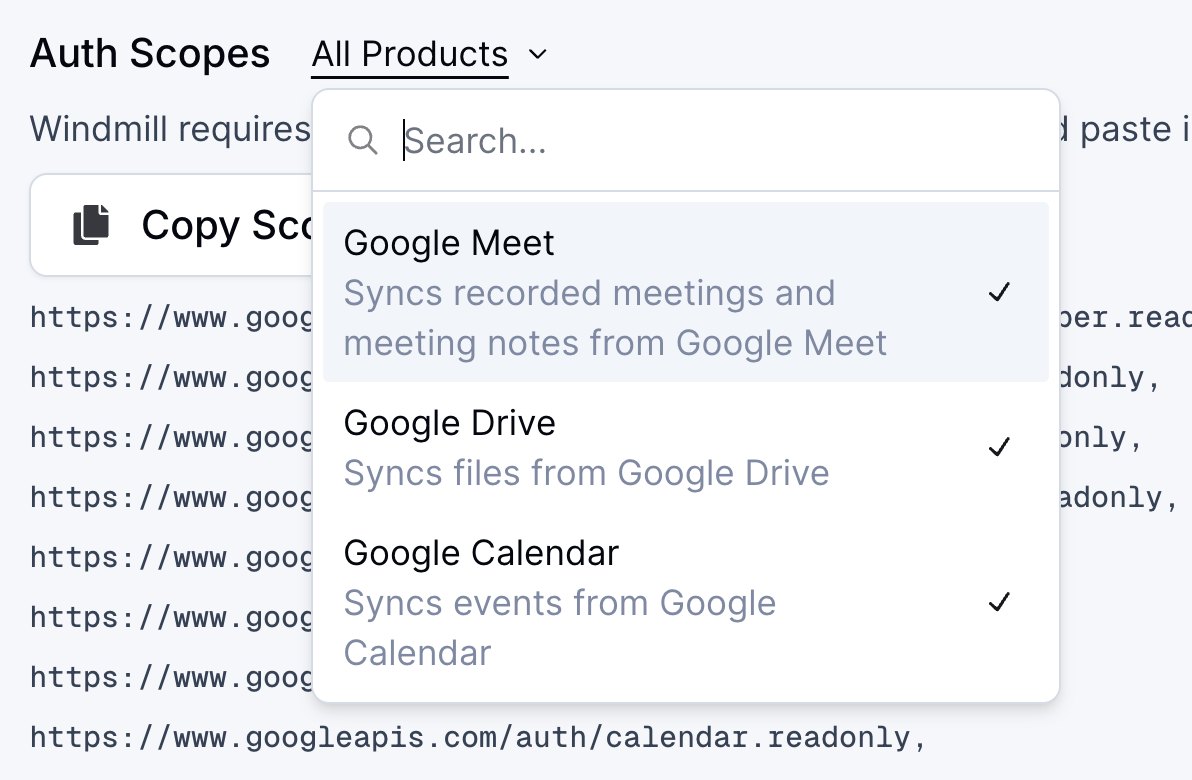
When connecting Google Workspace to Windmill, you can choose which Google products to integrate: **Google Meet**, **Google Drive**, and **Google Calendar**. You can select all of them, just a subset, or none during the connection setup.
This gives you granular control over what data Windmill can access from your Google Workspace.
 ### Limiting Drive access
You can restrict which shared drives Windmill can access to prevent syncing sensitive documents.
To configure this:
1. Go to your [Google Workspace integration settings](https://app.gowindmill.com/COMPANY/config/integrations)
2. Click on your **Google Workspace** integration
3. Click **Settings**
4. Select which specific shared drives you want to make available to Windmill
5. Remove access to any drives containing sensitive information
This additional security control lets you fine-tune access at the drive level.
### Restricting data sync
You can limit which Google Workspace members have their calendar, meetings, activities, and documents synced into Windmill. This is useful for organizations that only want to sync data for specific teams or active Windmill users.
People and group metadata always syncs for all members, regardless of any restrictions you set. Restrictions only apply to calendar events, meetings, activities, and documents.
There are two restriction types, and they can be used individually or together:
* **Restrict to Google Groups** — Only sync data for members of specific Google groups. For example, you could restrict syncing to your `engineering@company.com` and `sales@company.com` groups.
* **Restrict to Windmill Members** — Only sync data for employees who have an active Windmill member account.
When both restrictions are enabled, users must satisfy both conditions to have their data synced.
For a pilot rollout, invite only the pilot users to Windmill, then restrict Google Workspace sync to the pilot Google Group. If needed, also enable **Restrict to Windmill Members** so only active Windmill members have their Google Workspace activity synced.
To configure data sync restrictions:
Go to your [Google Workspace integration settings](https://app.gowindmill.com/COMPANY/config/integrations) and click on your **Google Workspace** integration. Then click **Settings**.
Under **Restrict to Google Groups**, enter a group email address and click **Add Group**. Repeat for each group you want to include. Only members of these groups will have their data synced.
Toggle **Restrict to Windmill Members** to only sync data for employees with an active Windmill member account.
Click **Save** to apply your changes. The synced user count at the top of the section updates to reflect your restrictions.
## FAQs
The super admin email is required to access Google's administrative APIs that only super admins can use:
* **Employee Directory** - We need admin access to sync all employees in your workspace
* **Groups** - Only admins can retrieve group memberships and organizational structure
* **Domain-wide Access** - Admin privileges let us sync data for all users, not just individuals
Without super admin access, we can't retrieve your company's employee list or team structures from Google Workspace.
Google Workspace is a workspace-level admin integration, not a per-user OAuth connection. Windmill needs admin access to sync the employee directory and groups, and Domain-wide Delegation supports workspace-wide access for the Google products you enable. For pilot rollouts, limit access with data sync restrictions instead of per-user OAuth.
Yes. Restrict Google Workspace data sync to specific Google Groups, to active Windmill members, or both. For platform access, users still need to be invited or provisioned into Windmill, so a common pilot setup is to invite only pilot users and restrict Google Workspace sync to the pilot Google Group.
No. Windmill inherits all existing permissions from Google Workspace. Even if you're a Windmill admin, you can only see documents, calendar events, and meetings that you already have access to in Google Workspace.
Your data stays secure within your existing Google Workspace access controls. There's never a possibility where you'd be able to see something in Windmill that you wouldn't be able to see in Google Workspace.
You have full control over which Google products to integrate. During the connection setup, you can choose to enable **Google Meet**, **Google Drive**, and **Google Calendar** individually—select all of them, just a subset, or none.
This lets you customize your integration based on what data you want Windmill to access. See [Selecting which products to enable](#selecting-which-products-to-enable) for more details.
You can restrict data syncing to specific Google groups, to active Windmill members, or both. Go to your Google Workspace integration settings, click **Settings**, and configure restrictions under **Data Sync Restrictions**. See [Restricting data sync](#restricting-data-sync) for step-by-step instructions.
You can restrict which shared drives Windmill can access:
1. Go to your [Google Workspace integration settings](https://app.gowindmill.com/COMPANY/config/integrations)
2. Click on your **Google Workspace** integration
3. Click **Settings**
4. Select which specific shared drives you want to make available
5. Remove access to any drives containing sensitive information
This gives you drive-level control to protect sensitive documents. See [Limiting Drive access](#limiting-drive-access) for more details.
Windy can read the actual contents of text documents including Docs, Slides, Sheets, PDFs and other text files. Video and audio files are not currently supported.
No. Windmill does not integrate with Gmail or access email content. The Google Workspace integration focuses on Google Drive, Google Calendar, and Google Meet to surface collaboration, planning, and meeting participation.
### Limiting Drive access
You can restrict which shared drives Windmill can access to prevent syncing sensitive documents.
To configure this:
1. Go to your [Google Workspace integration settings](https://app.gowindmill.com/COMPANY/config/integrations)
2. Click on your **Google Workspace** integration
3. Click **Settings**
4. Select which specific shared drives you want to make available to Windmill
5. Remove access to any drives containing sensitive information
This additional security control lets you fine-tune access at the drive level.
### Restricting data sync
You can limit which Google Workspace members have their calendar, meetings, activities, and documents synced into Windmill. This is useful for organizations that only want to sync data for specific teams or active Windmill users.
People and group metadata always syncs for all members, regardless of any restrictions you set. Restrictions only apply to calendar events, meetings, activities, and documents.
There are two restriction types, and they can be used individually or together:
* **Restrict to Google Groups** — Only sync data for members of specific Google groups. For example, you could restrict syncing to your `engineering@company.com` and `sales@company.com` groups.
* **Restrict to Windmill Members** — Only sync data for employees who have an active Windmill member account.
When both restrictions are enabled, users must satisfy both conditions to have their data synced.
For a pilot rollout, invite only the pilot users to Windmill, then restrict Google Workspace sync to the pilot Google Group. If needed, also enable **Restrict to Windmill Members** so only active Windmill members have their Google Workspace activity synced.
To configure data sync restrictions:
Go to your [Google Workspace integration settings](https://app.gowindmill.com/COMPANY/config/integrations) and click on your **Google Workspace** integration. Then click **Settings**.
Under **Restrict to Google Groups**, enter a group email address and click **Add Group**. Repeat for each group you want to include. Only members of these groups will have their data synced.
Toggle **Restrict to Windmill Members** to only sync data for employees with an active Windmill member account.
Click **Save** to apply your changes. The synced user count at the top of the section updates to reflect your restrictions.
## FAQs
The super admin email is required to access Google's administrative APIs that only super admins can use:
* **Employee Directory** - We need admin access to sync all employees in your workspace
* **Groups** - Only admins can retrieve group memberships and organizational structure
* **Domain-wide Access** - Admin privileges let us sync data for all users, not just individuals
Without super admin access, we can't retrieve your company's employee list or team structures from Google Workspace.
Google Workspace is a workspace-level admin integration, not a per-user OAuth connection. Windmill needs admin access to sync the employee directory and groups, and Domain-wide Delegation supports workspace-wide access for the Google products you enable. For pilot rollouts, limit access with data sync restrictions instead of per-user OAuth.
Yes. Restrict Google Workspace data sync to specific Google Groups, to active Windmill members, or both. For platform access, users still need to be invited or provisioned into Windmill, so a common pilot setup is to invite only pilot users and restrict Google Workspace sync to the pilot Google Group.
No. Windmill inherits all existing permissions from Google Workspace. Even if you're a Windmill admin, you can only see documents, calendar events, and meetings that you already have access to in Google Workspace.
Your data stays secure within your existing Google Workspace access controls. There's never a possibility where you'd be able to see something in Windmill that you wouldn't be able to see in Google Workspace.
You have full control over which Google products to integrate. During the connection setup, you can choose to enable **Google Meet**, **Google Drive**, and **Google Calendar** individually—select all of them, just a subset, or none.
This lets you customize your integration based on what data you want Windmill to access. See [Selecting which products to enable](#selecting-which-products-to-enable) for more details.
You can restrict data syncing to specific Google groups, to active Windmill members, or both. Go to your Google Workspace integration settings, click **Settings**, and configure restrictions under **Data Sync Restrictions**. See [Restricting data sync](#restricting-data-sync) for step-by-step instructions.
You can restrict which shared drives Windmill can access:
1. Go to your [Google Workspace integration settings](https://app.gowindmill.com/COMPANY/config/integrations)
2. Click on your **Google Workspace** integration
3. Click **Settings**
4. Select which specific shared drives you want to make available
5. Remove access to any drives containing sensitive information
This gives you drive-level control to protect sensitive documents. See [Limiting Drive access](#limiting-drive-access) for more details.
Windy can read the actual contents of text documents including Docs, Slides, Sheets, PDFs and other text files. Video and audio files are not currently supported.
No. Windmill does not integrate with Gmail or access email content. The Google Workspace integration focuses on Google Drive, Google Calendar, and Google Meet to surface collaboration, planning, and meeting participation.