> ## Documentation Index
> Fetch the complete documentation index at: https://help.gowindmill.com/llms.txt
> Use this file to discover all available pages before exploring further.
# Figma
> Connect Figma to Windmill so design activity and file contributions appear in recaps, 1:1 prep, and performance reviews with credit going to the right people.
## Benefits of connecting Figma to Windmill
Connecting Figma to Windmill allows design work and collaboration to be reflected directly in performance reviews and 1:1s — without designers having to document or defend their contributions.
* Captures design progress, iterations, and shipped work automatically
* Ensures designers receive recognition for the thinking, not just the final output
* Reduces the need to reconstruct or explain work during review cycles
* Surfaces collaboration patterns and feedback history to support coaching
* Makes performance reviews more fair, accurate, and grounded in real work
Windmill transforms Figma activity into meaningful context for reflection, growth, and evaluation.
## Connected data
When connected, Windmill securely reads selected activity from Figma:
| Data Type | How Windmill Uses It |
| ---------------------------------------------- | ----------------------------------------------------------- |
| File and project creation / updates | Shows progress and contribution over time |
| Version history & design iteration checkpoints | Highlights improvement, iteration, and problem-solving |
| Comments and feedback threads | Adds qualitative collaboration insights to 1:1s and reviews |
| File ownership and collaborator lists | Attributes work to the correct designers and contributors |
## Permissions
Windmill requests **read-only** access to selected Figma files and projects.
| Permission | Purpose |
| ------------------------------------------ | ---------------------------------------------------------------------- |
| Read file metadata and version history | To show design progress and collaboration patterns |
| Read comments and feedback thread metadata | To provide context for reviews and coaching |
| Read collaborator / owner information | To attribute work to the correct team members |
| **No write access** | Windmill never edits or changes Figma files |
| Team-level access | Windmill will only have access to the team page ID shared upon install |
## How do I add my Team ID?
To use Figma with Windmill, you need to add the team IDs you want to sync. Go to Figma to find your team IDs. Here is where your team ID lives in Figma:
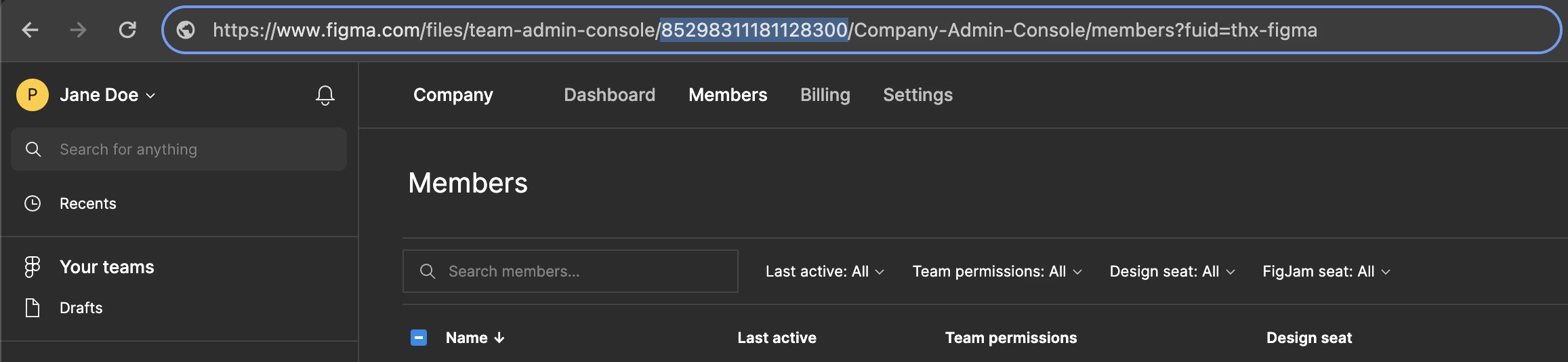 For more assistance, here is a Loom taking you through the flow.
## Username mapping
Figma uses specific usernames that don't always map to employee email addresses. If you see Figma activities that aren't associated with a team member or are associated with the wrong team member, Windmill Admins can fix this.
To update username mapping:
1. Go to **Settings** in Windmill
2. Select the **Integrations** tab
3. Select **Figma**
4. Select the **Mapping** tab to see all usernames and their current mappings
5. Click **Update mapping** to edit assignments
## FAQs
No. The integration is 100% read-only.
No. Windmill stores metadata, version history signals, and comment context — not full asset binaries.
Continuously. Design progress and collaboration updates appear in Windmill shortly after they occur in Figma.
Yes. All data is encrypted in transit and at rest. Windmill follows SOC 2 and least-privilege access standards.
Their historical contributions remain visible for context, but Windmill stops associating new activity once they are inactive.
For more assistance, here is a Loom taking you through the flow.
## Username mapping
Figma uses specific usernames that don't always map to employee email addresses. If you see Figma activities that aren't associated with a team member or are associated with the wrong team member, Windmill Admins can fix this.
To update username mapping:
1. Go to **Settings** in Windmill
2. Select the **Integrations** tab
3. Select **Figma**
4. Select the **Mapping** tab to see all usernames and their current mappings
5. Click **Update mapping** to edit assignments
## FAQs
No. The integration is 100% read-only.
No. Windmill stores metadata, version history signals, and comment context — not full asset binaries.
Continuously. Design progress and collaboration updates appear in Windmill shortly after they occur in Figma.
Yes. All data is encrypted in transit and at rest. Windmill follows SOC 2 and least-privilege access standards.
Their historical contributions remain visible for context, but Windmill stops associating new activity once they are inactive.