> ## Documentation Index
> Fetch the complete documentation index at: https://help.gowindmill.com/llms.txt
> Use this file to discover all available pages before exploring further.
# Visibility and settings
> Understand who can see feedback, and configure the audiences, default audience, and edit window for your company.
Every piece of feedback has an audience that controls who can read it. Admins and HR Admins choose which audiences people can pick and which one is the default, so feedback is shared the way your company expects.
## Feedback audiences
| Audience | Who can read the feedback |
| - | - |
| **Recipient only** | The person the feedback is about. |
| **Manager only** | That person's direct manager. The person can't see it. |
| **Manager hierarchy** | All managers above that person. The person can't see it. |
| **Recipient and managers** | That person and all managers above them. |
| **Public** | Everyone in the company. |
The author picks an audience when they give feedback or respond to a request. Only the audiences your company allows appear.
### Who else can read feedback
* **The author** can always read feedback they gave.
* **Admins and HR Admins** can read feedback about other people. They can't read feedback about themselves unless its audience includes them.
* **A recipient with no manager** can read **Manager only** and **Manager hierarchy** feedback about themselves.
### Author identity
The audience controls who can read the feedback, not whether the author's name appears. Some feedback hides the author's identity, and the author shows as **Anonymous**.
### Shoutouts make feedback public
When positive feedback becomes a [Shoutout](/features/shoutouts), its audience changes to **Public**. Windy asks the author for confirmation before it creates the Shoutout.
## Configure feedback settings
You must be an Admin or HR Admin.
Go to [**Settings > Feedback**](https://app.gowindmill.com/COMPANY/config/feedback/settings). You can also open **Feedback actions > Configure feedback settings** on the Feedback page.
Under **Visibility options**, turn on each audience that people can select when they give feedback. At least one option must stay on.
Under **Default option**, select the audience that new feedback and new requests start with. To turn off the current default, choose a different default first.
Under **Editing > Edit window**, choose how long people can edit or delete feedback after they submit it: **No editing**, **1 hour**, **24 hours**, or **7 days**.
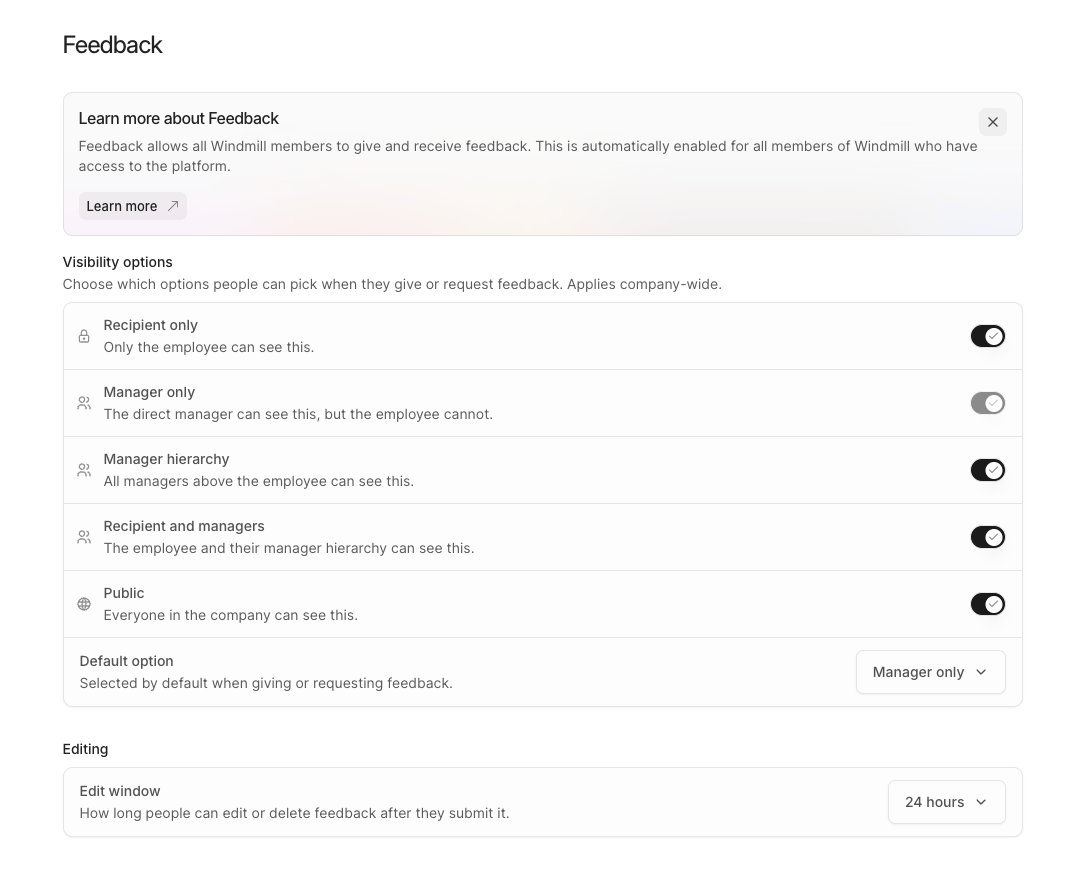 Changes save automatically and apply to the whole company.
### Default settings
| Setting | Default |
| - | - |
| **Visibility options** | All five audiences are allowed. |
| **Default option** | **Manager only** |
| **Edit window** | **24 hours** |
### How the settings apply
* **Leave feedback** starts with the default audience. People can change it to another allowed audience.
* **Request feedback** uses the default audience. The requester can change it while the request is scheduled, and the person who responds can select another allowed audience.
* **Windy** asks the author to choose an audience when more than one is allowed. When only one is allowed, Windy uses it.
* **Edit window** applies to the Feedback page, Windy, and MCP. It also applies to Admins and HR Admins who edit colleagues' feedback.
## Introduce the settings to your team
Tell your team which audiences are available and what the default means. Explain that a Shoutout makes linked feedback public. See [Introduce Feedback to your team](/giving-and-receiving-feedback-on-windmill).
This documentation is built and hosted on [Mintlify](https://mintlify.com), a developer documentation platform.
Changes save automatically and apply to the whole company.
### Default settings
| Setting | Default |
| - | - |
| **Visibility options** | All five audiences are allowed. |
| **Default option** | **Manager only** |
| **Edit window** | **24 hours** |
### How the settings apply
* **Leave feedback** starts with the default audience. People can change it to another allowed audience.
* **Request feedback** uses the default audience. The requester can change it while the request is scheduled, and the person who responds can select another allowed audience.
* **Windy** asks the author to choose an audience when more than one is allowed. When only one is allowed, Windy uses it.
* **Edit window** applies to the Feedback page, Windy, and MCP. It also applies to Admins and HR Admins who edit colleagues' feedback.
## Introduce the settings to your team
Tell your team which audiences are available and what the default means. Explain that a Shoutout makes linked feedback public. See [Introduce Feedback to your team](/giving-and-receiving-feedback-on-windmill).
This documentation is built and hosted on [Mintlify](https://mintlify.com), a developer documentation platform.