> ## Documentation Index
> Fetch the complete documentation index at: https://help.gowindmill.com/llms.txt
> Use this file to discover all available pages before exploring further.
# Request and respond to feedback
> Request feedback about yourself or your reports, track your requests, and respond to requests from others.
Request feedback to learn how your work lands with the people around you. Managers can also request feedback about people in their reporting line. Windy delivers each request and collects the response.
## Request feedback
You can request feedback about yourself. Managers can also request feedback about anyone in their reporting line, including skip-level reports.
### Use the Feedback page
Open [**Feedback**](https://app.gowindmill.com/COMPANY/feedback) and select **Request feedback**.
Leave **Request about** set to **Yourself**, or select a person in your reporting line.
In **Request from**, select up to 100 members. You can't select yourself or the person the request is about.
Under **What should the feedback be about?**, describe what you want feedback on. This field is optional.
Windmill creates a separate request for each person and shows when the requests will be sent.
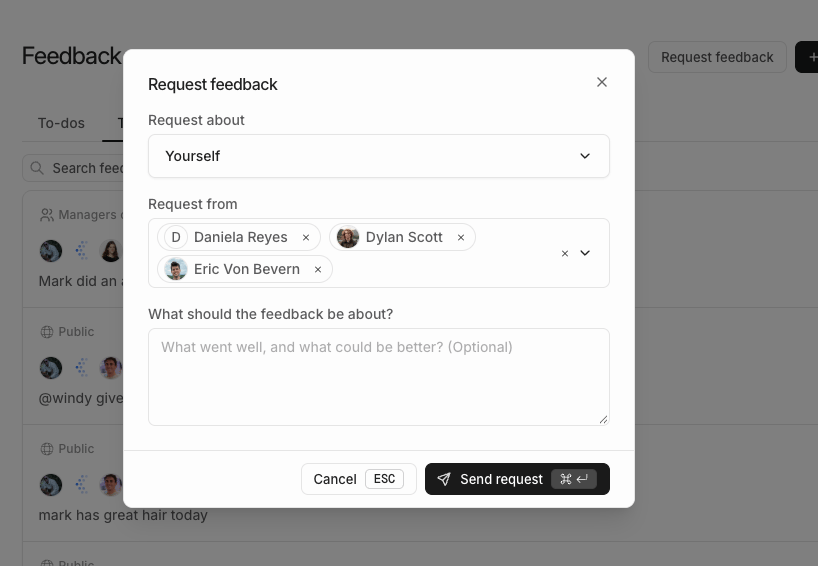 New requests use your company's default audience. You can change the audience before the request is sent. The person who responds can also select another allowed audience.
You can also press **Cmd+K** (or **Ctrl+K**) and select **Request feedback**.
### Use Windy
"@Windy, request feedback about me from \[person's name] about \[topic]."
"@Windy, request feedback about \[report's name] from \[person's name]."
You don't have to include a topic.
## When requests are sent
Windmill schedules requests so they reach people during their working hours:
* At least 30 minutes after you create the request.
* Monday through Friday, between 9 AM and 5 PM.
* In the time zone of the person giving feedback.
A completed response is not guaranteed. The person can decline the request.
## Track your requests
Open **Feedback > Your requests** to find requests you sent. Each request shows its status:
| Status | Meaning |
| - | - |
| **Scheduled** | The request has not been sent yet. **Sent** shows the scheduled time. |
| **Pending** | Windy sent the request and is waiting for a response. |
| **Declined** | The person declined the request. Open it to read their reason, if they gave one. |
When someone answers a request, it leaves this list. Find the answer under **Your feedback** or **Team feed**.
### Edit a scheduled request
Select a request with the **Scheduled** status, then select **Edit**. You can change the topic and the audience. You can't edit a request after Windy starts to send it.
### Cancel a request
In **Feedback > Your requests**, select the request.
You can cancel a scheduled or pending request.
Select **Cancel request** again. The request leaves your list.
If the request was already sent, Windy tells the person that they don't need to answer it. You can't cancel a request after it has been answered or declined.
You can also ask Windy to cancel a request:
"@Windy, cancel my feedback request to \[person's name]."
## Respond to a request
Requests that need your response appear under **Feedback > To-dos**, in **Cmd+K** to-dos, and on Home.
Open **Feedback > To-dos** and find the request.
The **Respond to request** form opens. Read who asked for the feedback, who it's about, and any topic they included.
Under **Give feedback**, write your response. The visibility starts with the request's audience. You can select another allowed audience.
The request is marked as submitted.
New requests use your company's default audience. You can change the audience before the request is sent. The person who responds can also select another allowed audience.
You can also press **Cmd+K** (or **Ctrl+K**) and select **Request feedback**.
### Use Windy
"@Windy, request feedback about me from \[person's name] about \[topic]."
"@Windy, request feedback about \[report's name] from \[person's name]."
You don't have to include a topic.
## When requests are sent
Windmill schedules requests so they reach people during their working hours:
* At least 30 minutes after you create the request.
* Monday through Friday, between 9 AM and 5 PM.
* In the time zone of the person giving feedback.
A completed response is not guaranteed. The person can decline the request.
## Track your requests
Open **Feedback > Your requests** to find requests you sent. Each request shows its status:
| Status | Meaning |
| - | - |
| **Scheduled** | The request has not been sent yet. **Sent** shows the scheduled time. |
| **Pending** | Windy sent the request and is waiting for a response. |
| **Declined** | The person declined the request. Open it to read their reason, if they gave one. |
When someone answers a request, it leaves this list. Find the answer under **Your feedback** or **Team feed**.
### Edit a scheduled request
Select a request with the **Scheduled** status, then select **Edit**. You can change the topic and the audience. You can't edit a request after Windy starts to send it.
### Cancel a request
In **Feedback > Your requests**, select the request.
You can cancel a scheduled or pending request.
Select **Cancel request** again. The request leaves your list.
If the request was already sent, Windy tells the person that they don't need to answer it. You can't cancel a request after it has been answered or declined.
You can also ask Windy to cancel a request:
"@Windy, cancel my feedback request to \[person's name]."
## Respond to a request
Requests that need your response appear under **Feedback > To-dos**, in **Cmd+K** to-dos, and on Home.
Open **Feedback > To-dos** and find the request.
The **Respond to request** form opens. Read who asked for the feedback, who it's about, and any topic they included.
Under **Give feedback**, write your response. The visibility starts with the request's audience. You can select another allowed audience.
The request is marked as submitted.
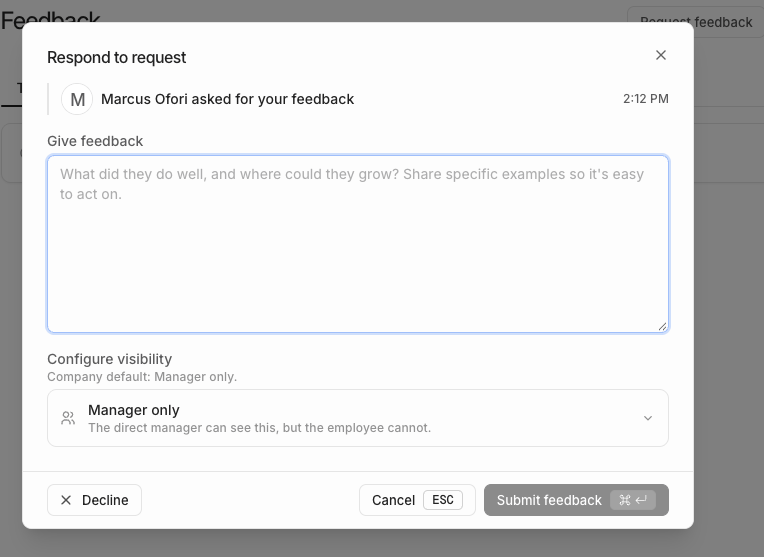 You can also respond in your conversation with Windy. If you give Windy feedback about the same person in another conversation, Windy asks whether it answers the request.
### Decline a request
Select the request, then select **Decline** in the **Respond to request** form. You can add a reason for the requester. Select **Decline request** to confirm. The requester can read your reason.
### Find requests with Windy
"@Windy, which feedback requests need my response?"
"@Windy, which feedback requests have I sent?"
## FAQs
New requests use your company's default audience. To change it, edit the request while it's scheduled. The person who responds can also select another allowed audience.
Answered requests leave **Your requests**. Find the feedback under **Your feedback** or **Team feed**, if its audience lets you see it.
Windmill sends requests during the working hours of the person you asked, at least 30 minutes after you create them. Find the scheduled time under **Your requests**.
This documentation is built and hosted on [Mintlify](https://mintlify.com), a developer documentation platform.
You can also respond in your conversation with Windy. If you give Windy feedback about the same person in another conversation, Windy asks whether it answers the request.
### Decline a request
Select the request, then select **Decline** in the **Respond to request** form. You can add a reason for the requester. Select **Decline request** to confirm. The requester can read your reason.
### Find requests with Windy
"@Windy, which feedback requests need my response?"
"@Windy, which feedback requests have I sent?"
## FAQs
New requests use your company's default audience. To change it, edit the request while it's scheduled. The person who responds can also select another allowed audience.
Answered requests leave **Your requests**. Find the feedback under **Your feedback** or **Team feed**, if its audience lets you see it.
Windmill sends requests during the working hours of the person you asked, at least 30 minutes after you create them. Find the scheduled time under **Your requests**.
This documentation is built and hosted on [Mintlify](https://mintlify.com), a developer documentation platform.