> ## Documentation Index
> Fetch the complete documentation index at: https://help.gowindmill.com/llms.txt
> Use this file to discover all available pages before exploring further.
# Give feedback
> Leave feedback about a colleague on the Feedback page or with Windy, and choose who can see it.
Give feedback when you see work worth noting. Specific, timely feedback helps your colleague grow and gives their manager context for 1:1s and reviews.
You can give feedback about another Windmill member. You can't give feedback about yourself.
## Leave feedback on the Feedback page
Open [**Feedback**](https://app.gowindmill.com/COMPANY/feedback) and select **Leave feedback**.
Under **Choose someone to give feedback to**, search for the member.
Under **Give feedback**, describe the work and its effect. Include specific examples.
Under **Configure visibility**, keep the company default or select another allowed audience. See [Feedback audiences](/features/feedback/visibility-and-settings#feedback-audiences).
Windmill saves the feedback. It appears for everyone in the audience you selected.
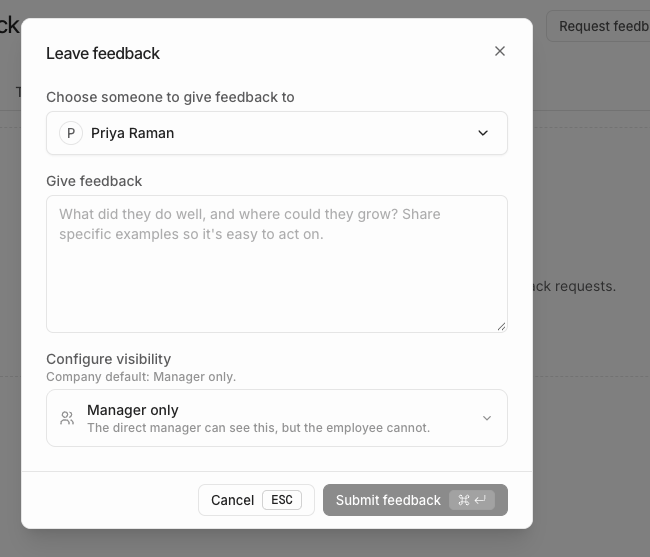 If only one audience is allowed, the form shows it without a choice. If you close the form with text in it, Windmill asks you to confirm before it discards the draft.
### Other ways to start
* Press **Cmd+K** (or **Ctrl+K**) and select **Give feedback**.
* Search for a person with **Cmd+K** and select **Give feedback** from their actions. Windmill fills in the person for you.
## Give feedback with Windy
Start a conversation with Windy in Slack or in the Windmill Dashboard.
"@Windy, I want to give feedback about \[person's name]."
Windy helps you prepare the feedback. You can give feedback about more than one person in a conversation.
When more than one audience is allowed, Windy asks you to choose one. Windy then shows you the feedback and its audience for a final confirmation before saving it. After saving, Windy confirms the audience and links to the feedback.
If someone has asked you for feedback about the same person, Windy asks whether your feedback answers that request. If you say no, Windy saves it as separate feedback and the request stays open.
## Tips for useful feedback
* **Be specific.** Describe what the person did, not their personality.
* **Explain the effect.** Say how the work helped the team, a customer, or a project.
* **Give it soon.** Feedback is most useful while the work is still fresh.
For more guidance, see the [Useful employee feedback](/best-practices/skills/useful-employee-feedback) skill.
## Next steps
* [Request feedback](/features/feedback/request-feedback) from your colleagues.
* [Edit or delete feedback](/features/feedback/find-and-manage-feedback#edit-or-delete-feedback) you gave.
This documentation is built and hosted on [Mintlify](https://mintlify.com), a developer documentation platform.
If only one audience is allowed, the form shows it without a choice. If you close the form with text in it, Windmill asks you to confirm before it discards the draft.
### Other ways to start
* Press **Cmd+K** (or **Ctrl+K**) and select **Give feedback**.
* Search for a person with **Cmd+K** and select **Give feedback** from their actions. Windmill fills in the person for you.
## Give feedback with Windy
Start a conversation with Windy in Slack or in the Windmill Dashboard.
"@Windy, I want to give feedback about \[person's name]."
Windy helps you prepare the feedback. You can give feedback about more than one person in a conversation.
When more than one audience is allowed, Windy asks you to choose one. Windy then shows you the feedback and its audience for a final confirmation before saving it. After saving, Windy confirms the audience and links to the feedback.
If someone has asked you for feedback about the same person, Windy asks whether your feedback answers that request. If you say no, Windy saves it as separate feedback and the request stays open.
## Tips for useful feedback
* **Be specific.** Describe what the person did, not their personality.
* **Explain the effect.** Say how the work helped the team, a customer, or a project.
* **Give it soon.** Feedback is most useful while the work is still fresh.
For more guidance, see the [Useful employee feedback](/best-practices/skills/useful-employee-feedback) skill.
## Next steps
* [Request feedback](/features/feedback/request-feedback) from your colleagues.
* [Edit or delete feedback](/features/feedback/find-and-manage-feedback#edit-or-delete-feedback) you gave.
This documentation is built and hosted on [Mintlify](https://mintlify.com), a developer documentation platform.