> ## Documentation Index
> Fetch the complete documentation index at: https://help.gowindmill.com/llms.txt
> Use this file to discover all available pages before exploring further.
# Feedback overview
> Learn how to give, request, and read feedback about your colleagues' work.
Use Feedback to record observations about a colleague's work as it happens. Feedback builds a record that managers and Windy can use in 1:1s and performance reviews, so nothing important gets lost between review cycles.
You can give and request feedback on the [**Feedback**](https://app.gowindmill.com/COMPANY/feedback) page in the Windmill Dashboard, or in a conversation with Windy in Slack or in the Dashboard.
## Feedback types
* **Proactive feedback:** You give feedback about a colleague without waiting for a request.
* **Requested feedback:** A member asks you to give feedback about themselves or about a person in their reporting line. Windy delivers the request and collects your response.
## How feedback works
### Giving feedback
Select a colleague, describe their work, and choose who can see the feedback. Your company controls which audiences are available. See [Give feedback](/features/feedback/give-feedback).
### Requesting and responding
Request feedback about yourself, or about a person in your reporting line. Windmill schedules each request during the provider's working hours. Providers respond or decline from their to-dos. See [Request and respond to feedback](/features/feedback/request-feedback).
### Reading and managing feedback
The Feedback page shows feedback that you have permission to see. You can edit or delete your own feedback within your company's edit window. See [Find, edit, and delete feedback](/features/feedback/find-and-manage-feedback).
### Visibility
Each piece of feedback has an audience, such as **Recipient only** or **Manager hierarchy**. Admins and HR Admins choose the allowed audiences and the default. See [Visibility and settings](/features/feedback/visibility-and-settings).
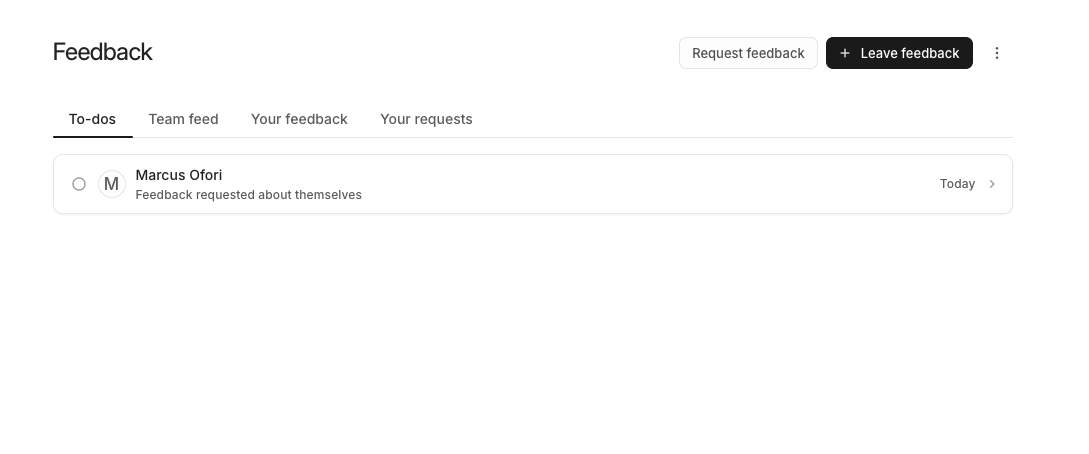
## The Feedback page
Open [**Feedback**](https://app.gowindmill.com/COMPANY/feedback) from the Dashboard navigation.
| Tab | Use |
| - | - |
| **To-dos** | Respond to or decline requests that need your feedback. This is the default tab. |
| **Team feed** | Read feedback that you have permission to see. |
| **Your feedback** | Find feedback about you and feedback you gave. |
| **Your requests** | Track, edit, or cancel requests that you sent. |
Use **Leave feedback** and **Request feedback** at the top of the page to start.
 ## Where feedback appears
Feedback can appear on employee profiles, in [Catch Me Up](/features/1-on-1s/catch-me-up), and in [review writing support](/features/performance-reviews/windy-and-review-context). These features only use feedback that the viewer has permission to see.
## Shoutouts
Shoutouts recognize a colleague's work in a public Slack channel. Windy can offer to convert positive feedback to a Shoutout after the author agrees. A Shoutout makes its linked feedback **Public**. See [Shoutouts](/features/shoutouts).
## Before you start
* **Admins and HR Admins:** Check the [Feedback settings](/features/feedback/visibility-and-settings#configure-feedback-settings) before your team starts. The default audience applies to every new request.
* **Rolling out:** Use [Introduce Feedback to your team](/giving-and-receiving-feedback-on-windmill) to set expectations.
This documentation is built and hosted on [Mintlify](https://mintlify.com), a developer documentation platform.
## Where feedback appears
Feedback can appear on employee profiles, in [Catch Me Up](/features/1-on-1s/catch-me-up), and in [review writing support](/features/performance-reviews/windy-and-review-context). These features only use feedback that the viewer has permission to see.
## Shoutouts
Shoutouts recognize a colleague's work in a public Slack channel. Windy can offer to convert positive feedback to a Shoutout after the author agrees. A Shoutout makes its linked feedback **Public**. See [Shoutouts](/features/shoutouts).
## Before you start
* **Admins and HR Admins:** Check the [Feedback settings](/features/feedback/visibility-and-settings#configure-feedback-settings) before your team starts. The default audience applies to every new request.
* **Rolling out:** Use [Introduce Feedback to your team](/giving-and-receiving-feedback-on-windmill) to set expectations.
This documentation is built and hosted on [Mintlify](https://mintlify.com), a developer documentation platform.