> ## Documentation Index
> Fetch the complete documentation index at: https://help.gowindmill.com/llms.txt
> Use this file to discover all available pages before exploring further.
# 1:1 Meetings
> Track 1:1 patterns across your organization — meeting coverage and recency, time spent, agenda engagement, and which managers are running consistent check-ins.
The 1:1 Meetings report shows how consistently 1:1s are happening across your organization and where they might be slipping. Use it to spot managers who aren't meeting with their team, employees who've gone too long without a check-in, and pairs who meet but never capture notes.
Open it from the Analytics section of the [Windmill Dashboard](https://app.gowindmill.com/COMPANY/reports) — select **1:1 Meetings** from the list of reports.
## What you'll see
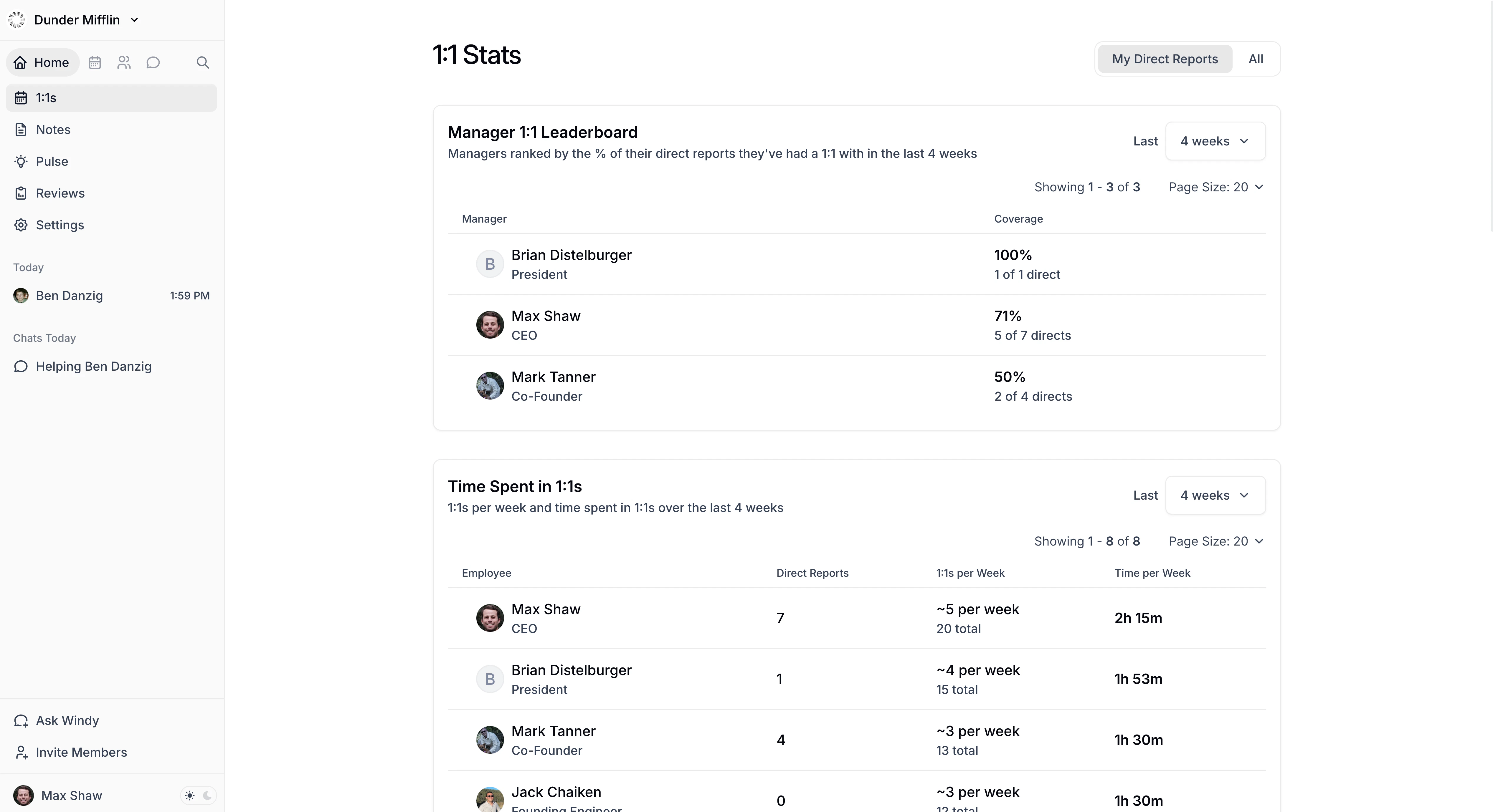
* **Manager 1:1 Leaderboard** — See which managers consistently meet with their team and which don't. Ranks managers by the percentage of direct reports they've met with in the selected time period.
* **Time Spent in 1:1s** — Understand how much time managers are investing in their people. Shows each employee's meeting frequency and total time in 1:1s.
* **Employees Without Recent 1:1s** — Spot manager-employee relationships that may need attention. Lists employees who haven't had a 1:1 with their manager within the selected threshold. This uses the same 1:1 list that appears on the [1:1s page](https://app.gowindmill.com/COMPANY/one-on-ones), including calendar-detected 1:1s and manually added 1:1s.
* **1:1 Pairs** — See whether teams are capturing value from 1:1s through documentation. Shows all 1:1 pairs with total meeting count and percentage with agenda content in Windmill.
 ## Filters and date range
Like the other Analytics reports, 1:1 Meetings uses the control panel at the top:
* **Employee filter** — Scope the report to a subset of employees — by group, department, manager, employment type, and more. Leave it empty to include everyone in your visible scope.
* **Date range** — Set the window for the time-based panels (the Leaderboard, Time Spent, and 1:1 Pairs). The recency check in **Employees Without Recent 1:1s** uses its own threshold rather than the date range.
The report only includes real manager-employee relationships — people who have a manager or direct reports.
## Who can view this report
1:1 Meetings follows the same visibility rules as the rest of [Analytics](/features/analytics):
* **Everyone** can see their own data.
* **Workspace Admins and Data Analysts** can see the report for the entire organization.
* **Managers** can see themselves and anyone in their reporting line, directly or indirectly. Use the Employee filter to narrow the scope.
Admin access does not grant visibility into 1:1 content. Shared 1:1 agendas and notes remain limited to the two participants, and Private Notes stay private to their creator.
## Filters and date range
Like the other Analytics reports, 1:1 Meetings uses the control panel at the top:
* **Employee filter** — Scope the report to a subset of employees — by group, department, manager, employment type, and more. Leave it empty to include everyone in your visible scope.
* **Date range** — Set the window for the time-based panels (the Leaderboard, Time Spent, and 1:1 Pairs). The recency check in **Employees Without Recent 1:1s** uses its own threshold rather than the date range.
The report only includes real manager-employee relationships — people who have a manager or direct reports.
## Who can view this report
1:1 Meetings follows the same visibility rules as the rest of [Analytics](/features/analytics):
* **Everyone** can see their own data.
* **Workspace Admins and Data Analysts** can see the report for the entire organization.
* **Managers** can see themselves and anyone in their reporting line, directly or indirectly. Use the Employee filter to narrow the scope.
Admin access does not grant visibility into 1:1 content. Shared 1:1 agendas and notes remain limited to the two participants, and Private Notes stay private to their creator.