> ## Documentation Index
> Fetch the complete documentation index at: https://help.gowindmill.com/llms.txt
> Use this file to discover all available pages before exploring further.
# Templates
> Give your 1:1s a consistent structure with personal and company-wide templates that pre-fill agenda items, talking points, and questions for each meeting.
Templates give your 1:1s a consistent structure. Instead of starting each meeting with a blank page, a template pre-populates the agenda with the sections and questions you want to cover — like wins, blockers, career growth, or anything else that matters for the relationship. Templates don't replace Suggested Topics — Windy still surfaces them automatically for your next upcoming 1:1 alongside the template-seeded agenda.
## Types of templates
* **Company templates** — Created by Admins or HR Admins and available to everyone in the organization. Useful for establishing a consistent 1:1 format across teams.
* **Personal templates** — Created by any employee for their own 1:1s. The template itself is only visible to the creator and to participants in 1:1s where it's been applied.
Windmill includes a set of starter templates to help you get going, or you can create your own from scratch.
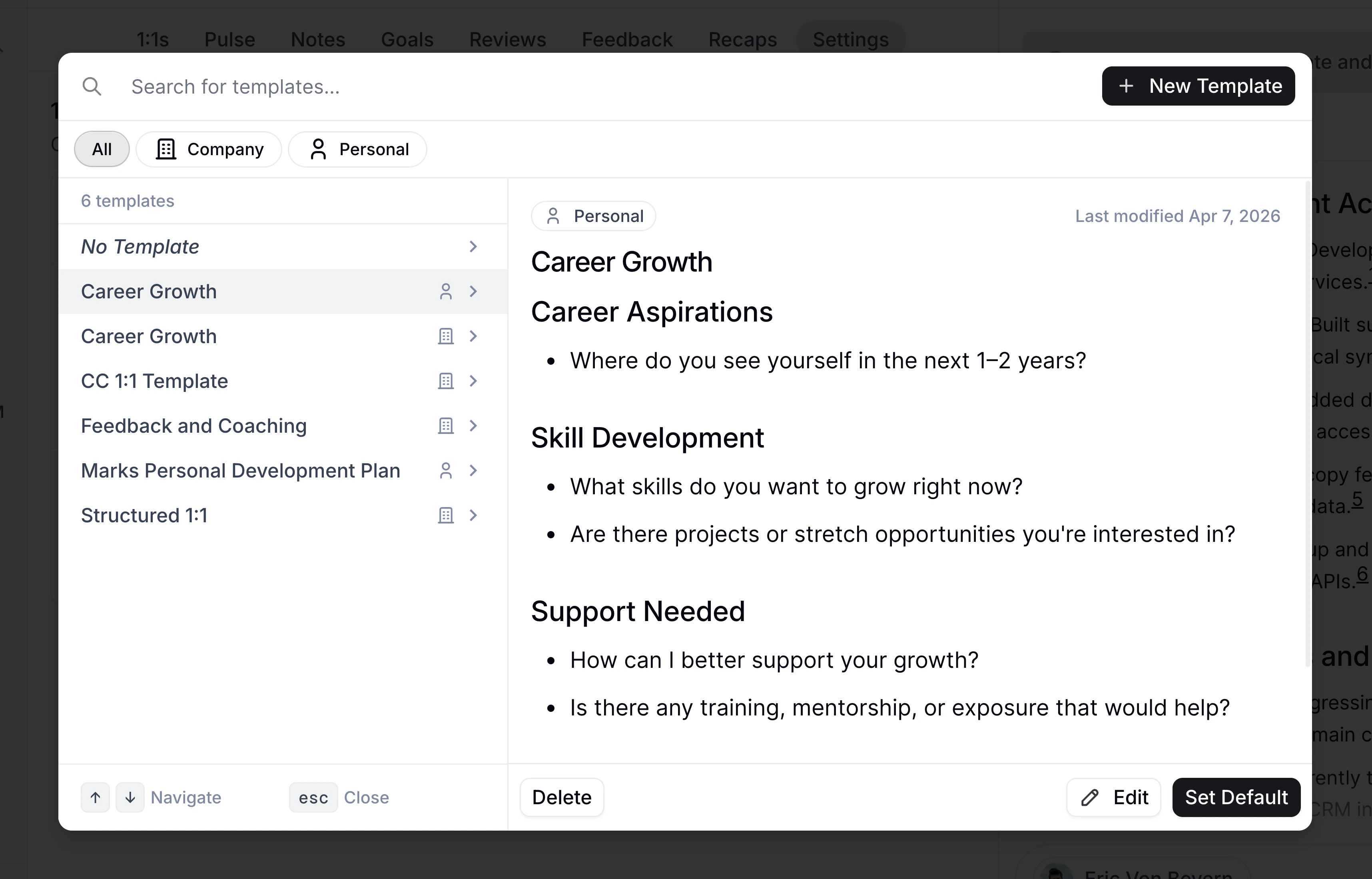 Once a template is applied to a 1:1, the sections and questions it populates become part of the [shared agenda](/features/1-on-1s#shared-agenda) — meaning both the manager and the employee can see and edit them.
## Company templates
Company templates are created and managed by Admins and HR Admins. They're a way to establish a standard 1:1 format across the organization — for example, ensuring every manager-report 1:1 covers key topics like priorities, blockers, and growth.
Admins and HR Admins manage company templates from the [1:1 Templates admin page](https://app.gowindmill.com/COMPANY/config/one-on-ones/templates). From there, they can:
* **Create** a new company template
* **Edit** a company template's name and content
* **View Pairs** — see all 1:1 pairs currently using the template
* **Delete** or **Duplicate** an existing template
When an Admin or HR Admin edits a company template that's assigned to one or more pairs, the updated content is automatically applied to all future, unedited 1:1 agendas for those pairs.
Once a company template is published, any employee can apply it to their own 1:1s — either for a single meeting or as the default for all future 1:1s with a specific person.
### Reviewing 1:1 pairs
Admins and HR Admins with 1:1 template configuration access can review pairs from the [1:1 pairs page](https://app.gowindmill.com/COMPANY/config/one-on-ones/pairs), or by clicking **View Pairs** from a company template.
Use the filters to find the pairs you need:
* **Employee** — Filter by one person in the pair.
* **Other employee** — Filter by the other person in the pair.
* **Relationship** — Filter by **Direct report**, **Skip level**, or **Other**. Direct report and skip-level filters include both directions of the reporting relationship, while Other covers peer 1:1s.
* **Template** — Filter to pairs using a specific default template.
## Personal templates
Any employee can create and manage their own personal templates from the Templates panel on the [1:1s page](https://app.gowindmill.com/COMPANY/one-on-ones).
From the Templates panel, you can:
* **Create** a new template with a name, description, and markdown content
* **Edit** templates you created
* **Duplicate** any template (including company templates and starter templates) into your own personal copy
* **Delete** templates you no longer need
Personal templates are markdown-based, so you can format them with headings, bullet points, or any structure that works for your meetings.
## Applying a template to a single 1:1
Use this when you want to apply a template to just one meeting — for example, a mid-year check-in that needs a different structure than your usual format.
Go to the [1:1s page](https://app.gowindmill.com/COMPANY/one-on-ones) and open the pair you're meeting with.
Hover over the 1:1 you want to update and click the three-dot menu (⋮) in the section header.
Click **Apply Template** and choose a template from the picker.
You can also apply a template from inside the agenda editor by typing `/` and selecting **Apply Template** from the slash command menu.
If the 1:1 already has content in the agenda, Windmill will ask you to confirm before overwriting it. Applying a template this way only affects the current 1:1 — future 1:1s with the same person are unchanged.
## Setting a default template for all future 1:1s
Use this when you want every future 1:1 with a specific person to start with the same structure. The default is set at the pair level, so it applies to every upcoming 1:1 with that individual.
Navigate to the profile of the person you have 1:1s with.
Click **Settings** on their profile.
In the **Default Template** row, click **Select Template** and pick a template from the picker. Click **Set Default** to confirm.
All future 1:1s for this pair that haven't been edited will use this template by default. Existing 1:1 agendas are not changed.
Only the manager in a 1:1 pair can set the default template.
The default template only seeds 1:1 agendas that haven't been edited yet. Once you or the other participant has added content to a specific 1:1, that meeting's agenda won't be overwritten.
To change or remove the default, open the same settings row and either select a different template or choose **No Template**.
## Duplicating a template
If an existing template is close to what you need but you want to customize it, you can duplicate it. This creates a new personal template you can edit freely without affecting the original.
From the Templates panel, open the template you want to copy and select **Duplicate**. Give your copy a new name and description, then edit the content as needed.
Once a template is applied to a 1:1, the sections and questions it populates become part of the [shared agenda](/features/1-on-1s#shared-agenda) — meaning both the manager and the employee can see and edit them.
## Company templates
Company templates are created and managed by Admins and HR Admins. They're a way to establish a standard 1:1 format across the organization — for example, ensuring every manager-report 1:1 covers key topics like priorities, blockers, and growth.
Admins and HR Admins manage company templates from the [1:1 Templates admin page](https://app.gowindmill.com/COMPANY/config/one-on-ones/templates). From there, they can:
* **Create** a new company template
* **Edit** a company template's name and content
* **View Pairs** — see all 1:1 pairs currently using the template
* **Delete** or **Duplicate** an existing template
When an Admin or HR Admin edits a company template that's assigned to one or more pairs, the updated content is automatically applied to all future, unedited 1:1 agendas for those pairs.
Once a company template is published, any employee can apply it to their own 1:1s — either for a single meeting or as the default for all future 1:1s with a specific person.
### Reviewing 1:1 pairs
Admins and HR Admins with 1:1 template configuration access can review pairs from the [1:1 pairs page](https://app.gowindmill.com/COMPANY/config/one-on-ones/pairs), or by clicking **View Pairs** from a company template.
Use the filters to find the pairs you need:
* **Employee** — Filter by one person in the pair.
* **Other employee** — Filter by the other person in the pair.
* **Relationship** — Filter by **Direct report**, **Skip level**, or **Other**. Direct report and skip-level filters include both directions of the reporting relationship, while Other covers peer 1:1s.
* **Template** — Filter to pairs using a specific default template.
## Personal templates
Any employee can create and manage their own personal templates from the Templates panel on the [1:1s page](https://app.gowindmill.com/COMPANY/one-on-ones).
From the Templates panel, you can:
* **Create** a new template with a name, description, and markdown content
* **Edit** templates you created
* **Duplicate** any template (including company templates and starter templates) into your own personal copy
* **Delete** templates you no longer need
Personal templates are markdown-based, so you can format them with headings, bullet points, or any structure that works for your meetings.
## Applying a template to a single 1:1
Use this when you want to apply a template to just one meeting — for example, a mid-year check-in that needs a different structure than your usual format.
Go to the [1:1s page](https://app.gowindmill.com/COMPANY/one-on-ones) and open the pair you're meeting with.
Hover over the 1:1 you want to update and click the three-dot menu (⋮) in the section header.
Click **Apply Template** and choose a template from the picker.
You can also apply a template from inside the agenda editor by typing `/` and selecting **Apply Template** from the slash command menu.
If the 1:1 already has content in the agenda, Windmill will ask you to confirm before overwriting it. Applying a template this way only affects the current 1:1 — future 1:1s with the same person are unchanged.
## Setting a default template for all future 1:1s
Use this when you want every future 1:1 with a specific person to start with the same structure. The default is set at the pair level, so it applies to every upcoming 1:1 with that individual.
Navigate to the profile of the person you have 1:1s with.
Click **Settings** on their profile.
In the **Default Template** row, click **Select Template** and pick a template from the picker. Click **Set Default** to confirm.
All future 1:1s for this pair that haven't been edited will use this template by default. Existing 1:1 agendas are not changed.
Only the manager in a 1:1 pair can set the default template.
The default template only seeds 1:1 agendas that haven't been edited yet. Once you or the other participant has added content to a specific 1:1, that meeting's agenda won't be overwritten.
To change or remove the default, open the same settings row and either select a different template or choose **No Template**.
## Duplicating a template
If an existing template is close to what you need but you want to customize it, you can duplicate it. This creates a new personal template you can edit freely without affecting the original.
From the Templates panel, open the template you want to copy and select **Duplicate**. Give your copy a new name and description, then edit the content as needed.